Cloudflare Zero Trust 101
Architecture, Preparation & Implementation Guide
Zero Trust deployment flow / WARP / ZTNA / SWG / CASB / DLP — Explained with dashboard screenshots & architecture diagrams
* Based on 2024 Webinar content. For the latest information, see the Docs
🔐 Zero Trust Portfolio
Product overview · SASE architecture · Key components
🚀 Zero Trust Deployment Flow
Deployment phases · Roadmap · Staged rollout
⚙️ Dashboard Initial Setup
Team name · IdP integration · Device enrollment
📱 WARP Client
Installation · Connection modes · Device profiles
🔒 Cloudflare ZTNA
Access applications · Tunnel setup · Policies
🛡️ Cloudflare SWG
DNS / Network / HTTP policies · TLS Decryption
🌐 Cloudflare RBI
Remote Browser Isolation · Isolated browsing
☁️ Cloudflare CASB
SaaS integration · Security scanning · Risk detection
🔍 Cloudflare DLP
Detection profiles · Sensitive data protection
Contacting Support
Support tickets · Troubleshooting · Glossary
Product Name Changes
The Cloudflare One product suite names have been updated as follows:
• WARP Client → Cloudflare One Client
• WARP Connector → Cloudflare Mesh
• Magic WAN → Cloudflare WAN / Cloudflare IPsec / Cloudflare GRE
• Magic WAN Connector → Cloudflare One Appliance
• Magic Firewall → Cloudflare Network Firewall
* This document may still use the previous names (e.g., WARP) in some places.
No action is required on your part. All existing settings, features, and billing remain unchanged. API and Terraform resource names are also unchanged.
See Cloudflare Docs for details ↗
Zero Trust Portfolio
Core Components
🔐 ZTNA (Cloudflare Access)
Zero Trust Network Access — Provides secure access to applications without a VPN.
- Per-application access control
- Authentication & authorization via IdP integration
- Device posture verification
- Per-session re-authentication
🛡️ SWG (Cloudflare Gateway)
Secure Web Gateway — Inspects and controls outbound traffic to the internet.
- DNS / HTTP / Network filtering
- Malware & phishing protection
- AV scanning & sandboxing
- Visibility through TLS decryption
📱 WARP Client (Cloudflare One Client)
Endpoint Agent — Client software that connects devices to the Cloudflare network.
- WireGuard / MASQUE tunnels
- DNS over HTTPS (DoH)
- Device Posture data collection
- Split Tunnel / Local Domain Fallback
Data Protection & SaaS Security
🔍 CASB (Cloud Access Security Broker)
SaaS Application Security — Provides visibility into SaaS apps, detects shadow IT, and identifies misconfigurations.
- API integration scanning for SaaS apps
- Shadow IT detection & control
- Misconfiguration & compliance violation detection
- Data sharing visibility
🔒 DLP (Data Loss Prevention)
Data Loss Prevention — Detects and protects sensitive data to prevent data loss.
- PII / PCI / PHI detection
- Custom detection patterns (regex)
- Exact Data Match (EDM)
- OCR-based text detection in images
🌐 RBI (Remote Browser Isolation)
Remote Browser Isolation — Runs the browser in the cloud to protect endpoints from threats.
- Protection against zero-day threats
- Isolated browsing for high-risk sites
- Copy/paste/print controls
- File download sanitization
Email & Network Security
📧 Email Security (Area 1)
Cloud Email Security — Protects email from phishing, BEC, and malware.
- Phishing & BEC attack detection
- Malicious attachment scanning
- Link rewriting & isolation
- DMARC / SPF / DKIM verification
🔗 Cloudflare Tunnel
Secure Connectivity — Securely connects origin servers to the Cloudflare network.
- No inbound ports required
- Encrypted connections via cloudflared
- Redundant connections to multiple data centers
- Private Network routing
📊 Digital Experience Monitoring
Digital Experience Monitoring — Provides visibility and analysis of user network experience.
- Fleet Status (device state)
- Synthetic Tests (synthetic monitoring)
- Network path analysis
- Application performance
Cloudflare Zero Trust Deployment Flow
For the deployment flow, please refer to Roadmap to Zero Trust. The roadmap to Zero Trust consists of steps spanning multiple phases. Zero Trust verifies three elements — user, device, and context — to control access to applications.
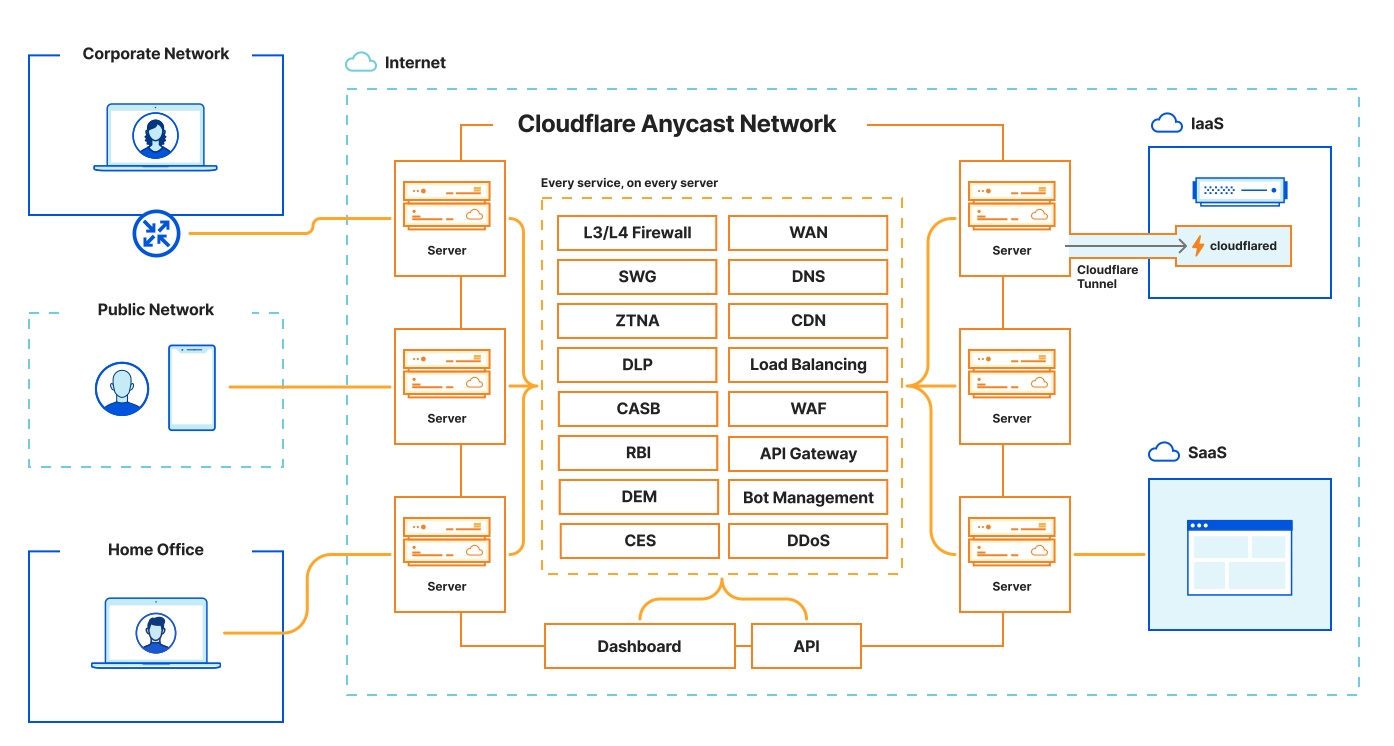
Example Deployment Phases
A staged deployment of Zero Trust is recommended. Below are examples of typical deployment phases. By setting success criteria for each phase and confirming no issues before proceeding to the next, you can minimize risk.
- Dashboard initial setup — Team name, IdP integration, basic settings
- ZTNA setup — Protect 1–2 internal apps with Access (pilot)
- Partial WARP deployment — Trial deployment with a small group such as the IT department
- Logpush setup — Configure log forwarding for auditing & troubleshooting
- DNS policy setup — Block security categories (malware, phishing, etc.)
- Network policy setup — Block dangerous ports & protocols
- Staged WARP deployment — Expand deployment by department (validate in each department before company-wide rollout)
- Split Tunnel / Local Domain Fallback tuning — Optimize access to internal resources
- Enable TLS Decryption — Distribute root certificates, create Do Not Inspect lists
- HTTP policy setup — Configure content categories, file types, AV scanning
- Complete company-wide WARP deployment — Deploy to remaining users & devices
- Device Posture setup — Add requirements for OS version, disk encryption, EDR integration
- CASB setup — API integration for SaaS apps (M365, Google Workspace, etc.)
- DLP setup — Create sensitive data detection profiles & apply policies
- RBI setup — Isolated browsing for high-risk categories & uncategorized sites
- Continuous optimization — Log analysis, policy tuning, evaluation of new features
Best Practices by Phase
| Phase | Best Practices | Reference |
|---|---|---|
| Phase 1 |
|
Get started → |
| Phase 2 |
|
Build DNS policies → |
| Phase 3 |
|
TLS decryption → |
| Phase 4 |
|
CASB setup → |
Common Deployment Challenges & Countermeasures
🚨 Common Challenges
- Certificate errors (526) — Apps incompatible with TLS inspection
- Business app connectivity issues — Incomplete Split Tunnel configuration
- Authentication loops — IdP misconfiguration, session timeouts
- Performance degradation — Improper routing settings
✅ Countermeasures & Prevention
- Do Not Inspect list — Identify incompatible apps in advance
- Staged deployment — Validate with a small group before expanding
- Rollback plan — Prepare rollback procedures for when issues arise
- User communication — Inform users of changes and contact points
Cloudflare Dashboard Initial Setup
Setting the Team Name
Select Zero Trust from the account menu in the Cloudflare dashboard and set your Team name. The Team name can be changed later, but it is used in the URL yourteam.cloudflareaccess.com.
Step 1-2: Set Team Name
- Click Zero Trust from the Cloudflare dashboard
- Specify a Team name
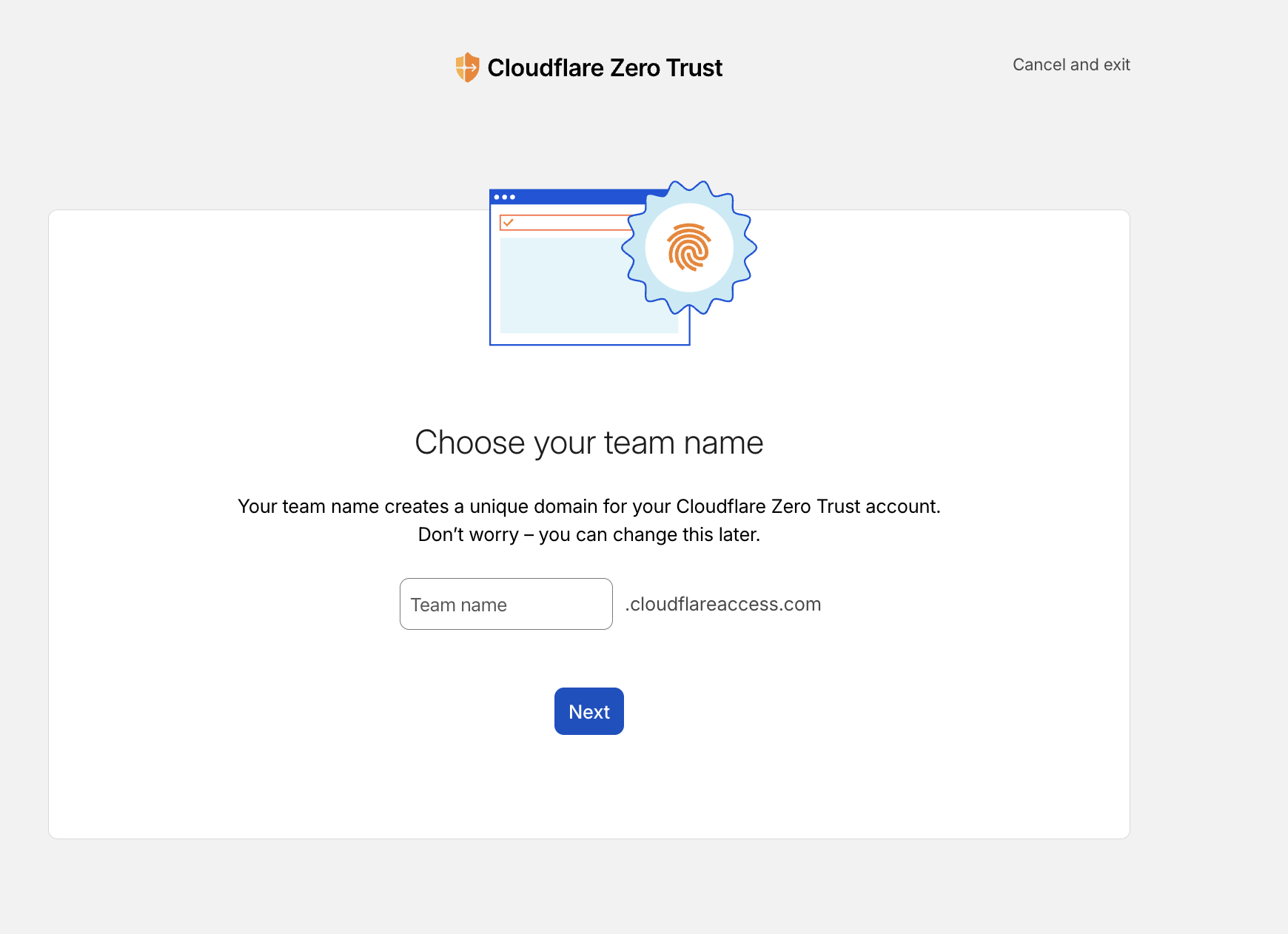
Step 3: Configure Subscription
- Set the subscription plan and payment method
Step 4: Access Zero Trust Dashboard
- Access the Zero Trust dashboard to configure settings
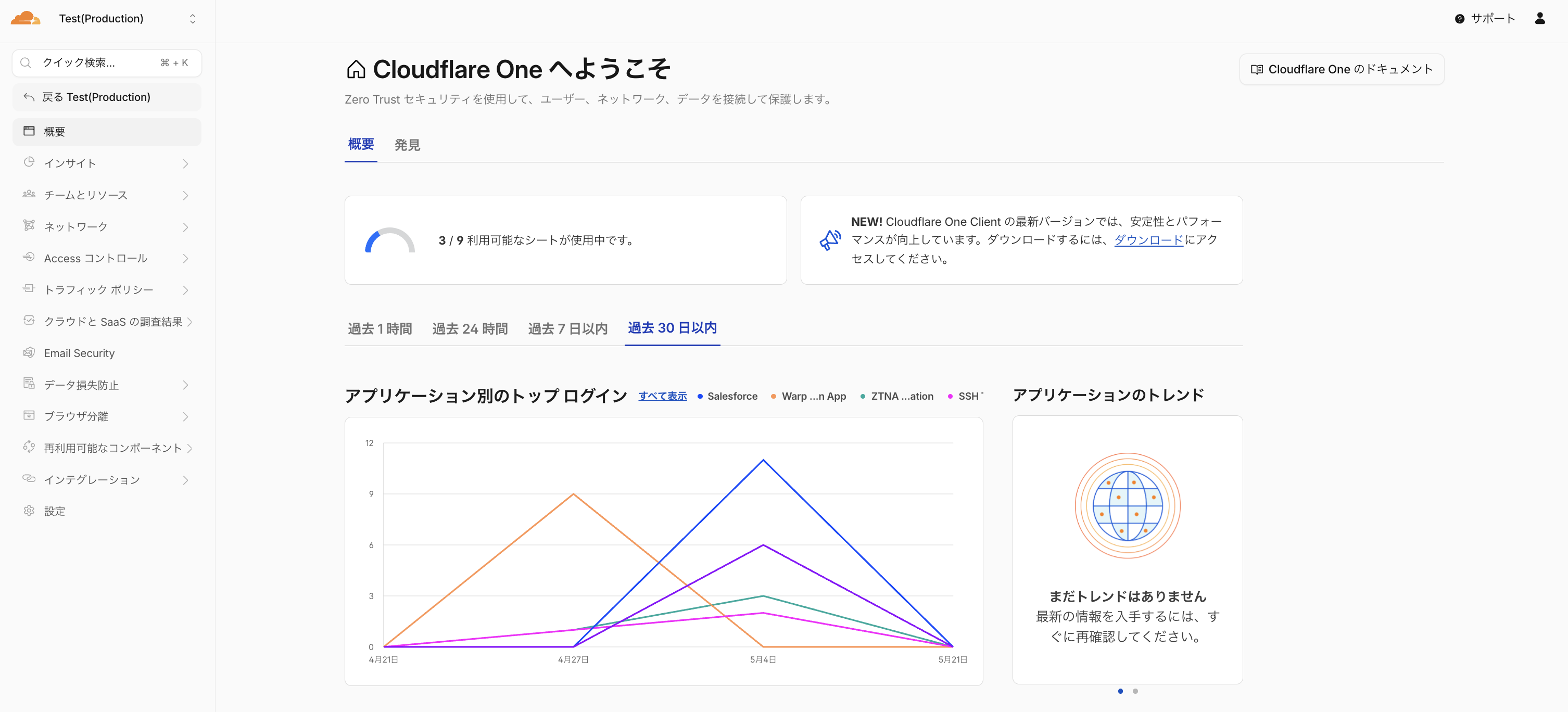
Authentication Method Setup (IdP)
Why is IdP integration necessary?
Cloudflare Zero Trust delegates user identity verification (authentication) to an external Identity Provider (IdP), enabling secure and centralized access management.
🔐 Single Sign-On (SSO)
By integrating with an existing IdP (Entra ID, Okta, Google Workspace, etc.), users can access multiple applications with a single login.
🛡️ Enhanced Security
Centrally manage MFA (multi-factor authentication) and password policies on the IdP side. No additional password management is needed on the Cloudflare side.
👥 User & Group Management
Leverage IdP group information to flexibly configure access policies, including role-based or department-based access control.
📊 Audit & Compliance
Authentication logs are recorded in both the IdP and Cloudflare. You can track who accessed what and when.
Where IdP is Used
Cloudflare Access (ZTNA) Authentication
Authentication event when accessing Applications registered in Access. IdP authentication is required when users access protected apps.
Cloudflare SWG Authentication
Authentication at initial WARP login. Seat count is calculated from this authentication result. Links devices to IdP users.
Supported IdP Provider List
Cloudflare Zero Trust supports all major Identity Providers. You can check the setup instructions for each IdP from the links below.
| IdP Provider | Protocol | Setup Documentation |
|---|---|---|
| Microsoft Entra ID (formerly Azure AD) | OIDC / SAML | Setup guide → |
| Okta | OIDC / SAML | Setup guide → |
| Google Workspace | OIDC | Setup guide → |
| OneLogin | OIDC / SAML | Setup guide → |
| PingIdentity / PingOne | OIDC / SAML | Setup guide → |
| GitHub | OAuth | Setup guide → |
| OAuth | Setup guide → | |
| OAuth | Setup guide → | |
| Generic SAML 2.0 | SAML | Setup guide → |
| Generic OIDC | OIDC | Setup guide → |
Microsoft Entra ID Configuration Example
Below are the integration steps for Microsoft Entra ID (formerly Azure AD):
- Prepare your IdP (e.g., Microsoft Entra ID)
- Click Integrations > Identity providers from the Zero Trust dashboard
- From the "Login methods" card, click "Add New" → Select IdP → Enter required fields → "Save"
- Confirm successful connection with the "Test" button
| Field | Setting |
|---|---|
| Name | Display name on the SSO login page (e.g., "Microsoft Entra ID") |
| Application ID | Obtained from Microsoft Entra ID (UUID format) |
| Application Secret | Obtained from Microsoft Entra ID |
| Directory ID | Obtained from Microsoft Entra ID (UUID format) |
| Azure Cloud | Select Default in most cases |
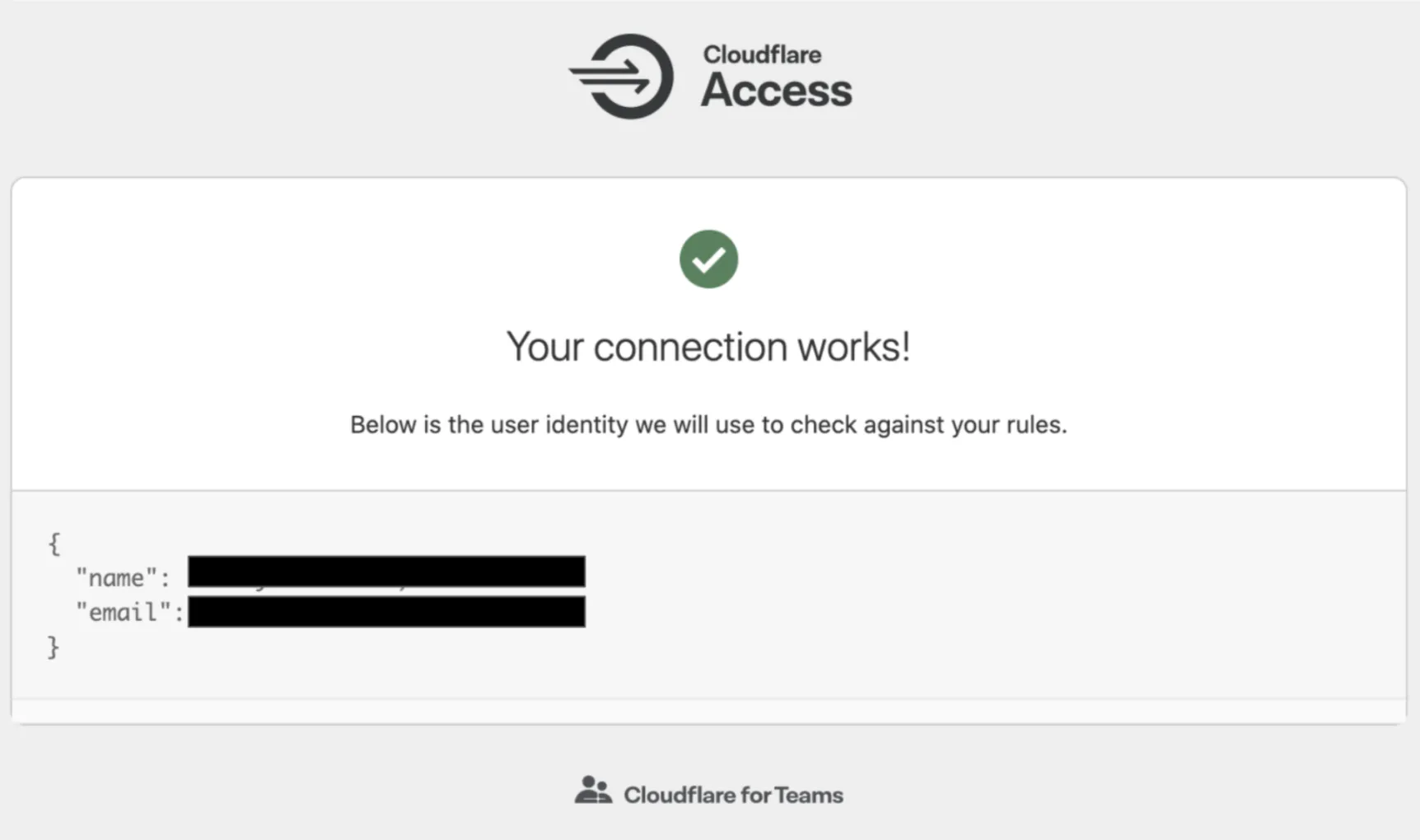
SCIM Sync: With SCIM integration with Entra ID, you can automatically sync user additions, deletions, and attribute changes.
Dashboard SSO Registration (Optional)
You can route Cloudflare Dashboard authentication through the SSO specified in Zero Trust.
- Request your CSM to create an SSO Connector (provide the email domain to be used)
- Enable the target domain in the "Cloudflare dashboard SSO" card under Integrations > Identity providers
- While keeping the admin panel open, verify SSO operation in a separate browser / Incognito window
- Complete when verification is OK. If issues arise, disable the SSO card and investigate
Logpush Setup (Enterprise)
Log data can be forwarded to an external SIEM / LMS. There are two methods: Logpush (recommended) and Logpull. Using the API enables more flexible configuration.
Why is Logpush necessary?
Logpush is important for Enterprise plan customers for the following reasons:
| Challenge | Dashboard Logs | Logpush |
|---|---|---|
| Retention period | Short-term (days to weeks) | Unlimited (depends on external storage) |
| Data accuracy | Sampling-based (not all data) | 100% complete log data |
| Long-term investigation | Difficult (data is lost) | Supports audit & incident investigation |
| SIEM integration | Not available | Integrates with Splunk, Datadog, Sumo Logic, etc. |
Setup Steps from the Dashboard
Steps to configure Logpush from the Zero Trust dashboard:
- Click Logs > Logpush from the Zero Trust dashboard
- Click the "Connect a Service" button
- Select the datasets to forward (multiple selections possible)
- Click "Next" → Select a Storage Service (R2, S3, Azure Blob, GCS, Splunk, etc.)
- Enter storage credentials → Verify connection with "Validate access"
- Click "Save and Start Pushing" to complete
Zero Trust Dataset List
Zero Trust-related datasets that can be forwarded via Logpush:
| Dataset | Description |
|---|---|
| Access Requests | HTTP requests to applications protected by Access |
| Audit Logs | Audit logs of configuration changes and administrative operations within the account |
| Browser Isolation User Actions | User actions within remote browser isolation sessions |
| CASB Findings | Security issues detected by CASB |
| Device Posture Results | Device Posture evaluation results from the WARP client |
| DEX Application Tests | Digital Experience Monitoring application test results |
| DEX Device State Events | Digital Experience Monitoring device state events |
| Gateway DNS | DNS query information detected by Gateway |
| Gateway HTTP | HTTP requests detected by Gateway |
| Gateway Network | Network session information detected by Gateway |
| SSH Logs | SSH session logs via Access for Infrastructure |
| WARP Config Changes | WARP client device profile configuration changes |
| WARP Toggle Events | WARP client enable/disable events |
| Zero Trust Network Session Logs | Detailed logs of Zero Trust network sessions |
Important Log Fields
| Log Type | Field | Description |
|---|---|---|
| Gateway DNS / Gateway HTTP | Action |
Actions such as Allow / Block / Isolate |
| Gateway DNS / Gateway HTTP | UserEmail |
User who made the request |
| Gateway DNS / Gateway HTTP | DeviceID |
Identifier of the requesting device |
| Gateway DNS / Gateway HTTP | PolicyName |
Name of the applied policy |
| Access | Allowed |
Whether access was permitted |
| Access | AppUID |
ID of the accessed application |
| Device Posture | PostureCheckType |
Type of posture check evaluated |
| Device Posture | Success |
Pass/fail result of the posture check |
Log Retrieval Example via Logpull API
Below is a command example to retrieve Logpush logs stored in R2 via the API. It fetches logs for a specified period in JSON format and formats them with jq for display.
$ curl -s -g -X GET \
  "https://api.cloudflare.com/client/v4/accounts/$CF_ACCOUNT_ID/logs/retrieve\
?start=20230504T160000Z&end=20230506T160000Z&bucket=$CF_LOG&prefix={DATE}" \
  -H "X-Auth-Email: $CF_EMAIL" -H "X-Auth-Key: $CF_APIKEY" \
  -H "R2-Access-Key-Id: $R2_ACCESS_KEY_ID" \
-H "R2-Secret-Access-Key: $R2_SECRET_ACCESS_KEY" | jq$CF_ACCOUNT_ID (Account ID), $CF_EMAIL (email address), $CF_APIKEY (API key), $R2_ACCESS_KEY_ID / $R2_SECRET_ACCESS_KEY (R2 credentials).Pricing: $0.10/GB/month (up to 2 years retention) | Eligibility: Contract customers (paid add-on for Application Services or Zero Trust purchasers)
WARP Client Installation
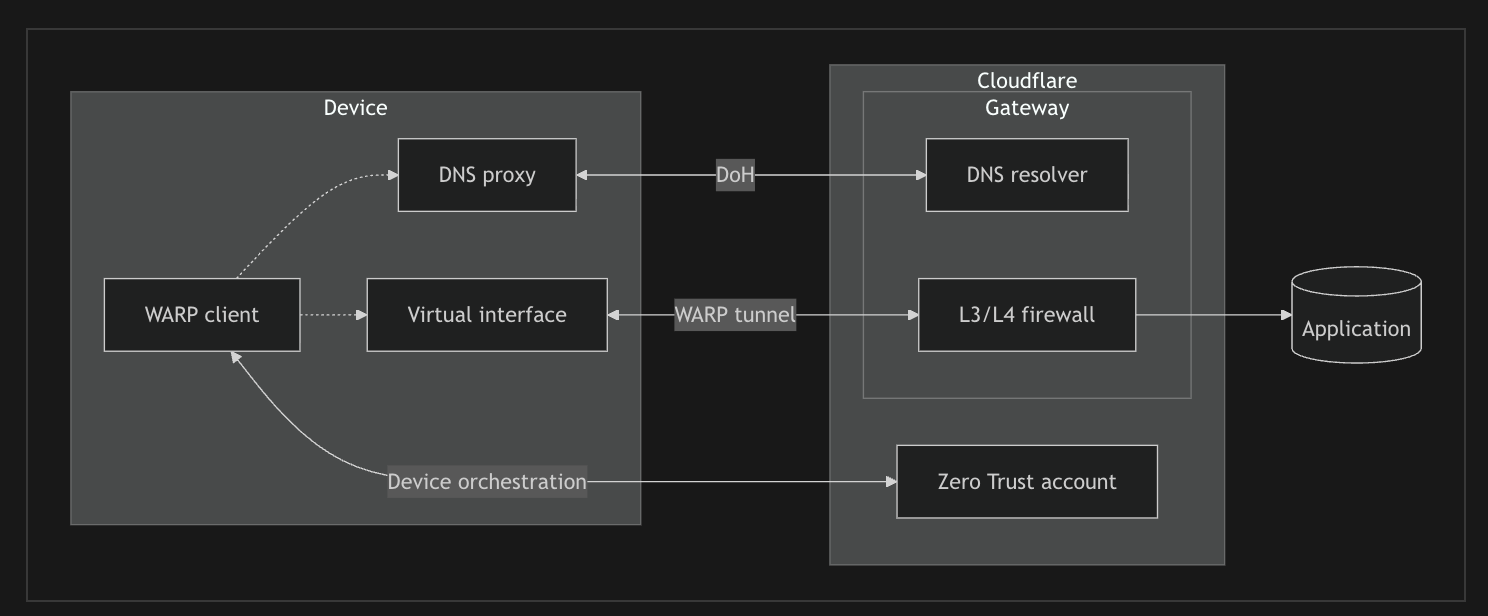
WARP Architecture
The WARP client connects to Cloudflare Gateway through a DNS proxy and Virtual interface on the device. It forwards DNS queries via DoH (DNS over HTTPS) and controls L3/L4 traffic through WireGuard or MASQUE tunnels.
Tunnel Protocol Comparison
WireGuard
A fast and lightweight VPN protocol. Uses state-of-the-art encryption technology, providing stable connections with low latency. Operates over UDP with a simple design and excellent performance.
Ports: UDP 2408, 500, 1701, 4500
MASQUE
A new protocol built on HTTP/3. Since it appears as normal HTTPS traffic, it easily passes through firewalls and proxies, making it effective in restrictive network environments.
Ports: UDP/TCP 443, UDP 4443, 8443, 8095
WARP Client Download and Installation
The WARP client is available on the following platforms:
💻 Desktop
Windows (64bit / ARM64)
macOS (Intel / Apple Silicon)
Linux (Ubuntu, Debian, RHEL, CentOS, etc.)
📱 Mobile
iOS (iPhone / iPad)
Android (Smartphone / Tablet)
ChromeOS
Installation Methods
There are two methods for installing the WARP client: Manual Installation and MDM (Mobile Device Management).
🖱️ Manual Installation
A method where users directly download and install the WARP client. Suitable for small-scale deployments and testing environments.
- Obtain the installer from the download page
- After installation, enter the Team name to register
- Complete IdP authentication
🏢 MDM Distribution
A method for bulk distribution using MDM tools such as Intune, Jamf, Workspace ONE, etc. Recommended for large-scale enterprise environments.
- Distribute pre-configured packages via MDM
- Automatically apply Team name and settings
- Minimize user operations
Installation Steps (Common)
- Upload custom root certificate to Cloudflare (optional)
- Enable "Install CA to system certificate store" in Team & Resources > Devices > WARP Client
- Download and install the WARP client
- Register the device to the Zero Trust Team
Command Line Installation Examples
# Windows — Silent install (for MDM / script distribution)
msiexec /i "Cloudflare_WARP_Release-x64.msi" /qn ORGANIZATION="your-team-name"

# Mac — Command line install
sudo installer -pkg Cloudflare_WARP.pkg -target /ORGANIZATION, users no longer need to manually enter the Team name. Refer to the official documentation for other MDM parameters.Coexistence with Legacy VPN
VPN Side Settings
Enable split tunneling / Disable DNS settings
WARP Side Settings
Exclude VPN IPs and destination hosts via Split Tunnels
Defining Device Enrollment Permissions
Specify the target users who are allowed to access the WARP Team.
- Select "Manage" from the "Device enrollment" card in Team & Resources > Devices > WARP Client
- Define authorized users in the "Rules" tab (e.g., domain match, group membership, etc.)
- Select available IdPs in the "Authentication" tab
- Click the "Save" button
Logging in to the Zero Trust Instance
- Click the Cloudflare icon from the menu bar
- Settings icon → Preferences > Account
- Select "Login with Cloudflare Zero Trust"
- Enter the Team name → Complete the authentication steps
WARP Connection Modes
The WARP client supports multiple connection modes, allowing flexible selection based on organizational security requirements and deployment stages. Available Gateway features differ by mode.
| Connection Mode | Requirements | DNS Filtering | HTTP Filtering | Network Filtering | Use Case |
|---|---|---|---|---|---|
| Gateway with WARP | WARP Client | ✅ | ✅ | ✅ | Full Zero Trust protection. Recommended for corporate devices |
| Gateway with DoH | DoH-compatible browser / OS | ✅ | ❌ | ❌ | DNS-level protection only. Suitable for BYOD and initial deployment |
| DNS Locations | Router / Network settings | ✅ | ❌ | ❌ | Office-wide DNS filtering. Agentless |
| Proxy Endpoint (PAC) | PAC file configuration | ✅ | ✅ | ❌ | HTTP filtering in environments where WARP is not supported |
Differences Between Gateway with WARP and Gateway with DoH
🔒 Gateway with WARP (Recommended)
Protects all traffic
- Filtering at all layers: DNS, HTTP, and Network
- Detailed HTTP inspection via TLS decryption
- DLP (Data Loss Prevention) features available
- Device Posture verification
- Per-user policy enforcement
- Access to private networks (Tunnel integration)
Requirement: WARP client installation required
🌐 Gateway with DoH
DNS-level protection only
- Filters DNS queries only
- Blocks malicious domains
- Filtering by content category
- Agentless deployment possible
- Available via browser DoH settings
Limitations: HTTP inspection, DLP, and Device Posture are not available
WARP Client Detailed Settings
What is a WARP Device Profile?
WARP Device Profile is a mechanism for grouping WARP client settings and applying them to specific users or devices. By creating multiple profiles, you can achieve flexible configuration management based on department, role, or deployment phase.
🎯 Benefits of Multiple Profiles
- Phased Deployment Testing — Test new rules and policies with a small pilot group first, then roll out company-wide after confirming no issues
- Department-specific Settings — Allow access to specific domains for development teams, apply different settings for sales teams, etc., customized to business requirements
- Risk Mitigation — Limit the impact of configuration changes to specific groups, preventing company-wide outages
- Easy Rollback — Ability to revert only the pilot group to original settings when issues occur
📋 Profile Configuration Examples
| Profile Name | Target | Purpose |
|---|---|---|
| Default | All users | Base settings (fallback) |
| Pilot-IT | IT department | Early testing of new features |
| Developers | Developers | Access to development tools |
| Executives | Management | Strict security settings |
Key Configuration Items
| Setting | Description |
|---|---|
| Switch Lock | Prevents users from disabling WARP. Recommended to disable during pilot deployment phase |
| Auto Connect | Automatically re-enables WARP after a set period when disabled |
| Auto Updates | Recommended to disable for stability. Maintain managed versions via MDM |
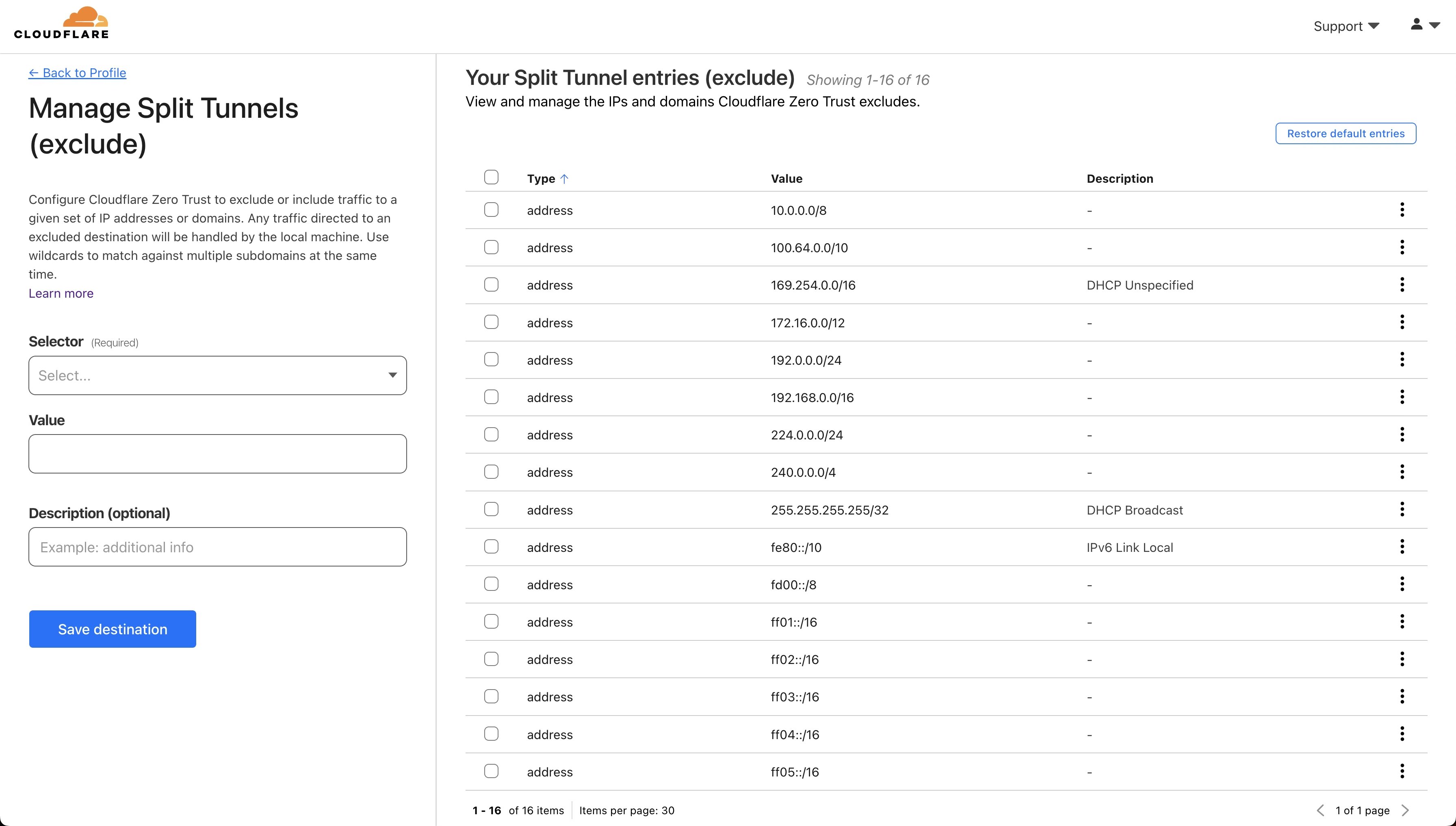
| Split Tunnels | Configure traffic that bypasses WARP by IP / domain. Why needed: Video conferencing apps (Zoom, Google Meet, Microsoft Teams, etc.) consume significant bandwidth and may experience latency when routed through WARP. Excluding this traffic maintains meeting quality while ensuring security. Configuration examples:
|
| Local Domain Fallback | Setting to delegate domain name resolution within private networks to internal DNS servers. Why needed: When accessing internal intranets (e.g., intranet.company.local) or internal systems, Cloudflare's DNS cannot resolve these names. This setting forwards DNS queries for specified domains to internal DNS servers, enabling access to internal resources. |
| Managed Network | Automatically switches WARP Profile based on the connected network (internal / external). Why needed: In the office, direct access to internal printers, file servers, and internal systems is required. By bypassing WARP when connected to the corporate network and enabling WARP when external (home, cafe, etc.), you can balance convenience and security. Configuration example: Identify the corporate network using TLS certificate hash values or specific IP address ranges |
| Virtual Network | A feature that allows connecting multiple private networks with overlapping IP addresses without conflicts. Why needed: Even when production and staging environments use the same 10.128.0.0/24, they can be managed as separate Virtual Networks. Also effective for network consolidation during M&A / organizational mergers.Benefits:
Prerequisites:
|
Checking Logs
warp-diag Command
When to use: Used when troubleshooting WARP client connection issues or performance problems. This command generates a diagnostic file containing WARP settings, connection status, network information, error logs, and more. Attaching this file when contacting support helps expedite issue identification. For details, refer to the WARP Troubleshooting Guide.
# Retrieve WARP diagnostic logs (generates a ZIP file)
$ warp-diag          # Mac / Linux
C:\Users\xxx> warp-diag  # Windows
Checking from the Dashboard
From the Zero Trust dashboard, you can check the status of registered devices and users in real time.
Registered Devices
Team & Resources > Devices
Available information: WARP version, last login date/time, user, OS information, device name
Use cases:
- Checking status when connection issues occur on a specific device
- Identifying devices using outdated WARP versions
- Auditing whether departed employees' devices remain
Registered Users
Team & Resources > Users
Available information: Active users, last login date/time, location, number of linked devices
Use cases:
- Checking license (seat) usage
- Identifying users who haven't logged in for an extended period
- Monitoring for signs of unauthorized access
WARP CGNAT IP Range
When a WARP client connects, the device is assigned a virtual IP address in the CGNAT (Carrier-Grade NAT) range. This IP address is used to uniquely identify devices within Cloudflare's network.
Cloudflare Docs — WARP client IP addresses| Protocol | CGNAT IP Range | Purpose |
|---|---|---|
| IPv4 | 100.96.0.0/12 |
Virtual IPv4 address for WARP-connected devices |
| IPv6 | fd00::/8 (ULA range) |
Virtual IPv6 address for WARP-connected devices |
Role of CGNAT:
- Device Identification — Assigns a unique virtual IP to each WARP-connected device, used for policy enforcement and logging
- Private Network Access — Functions as the source IP when accessing private resources via Tunnel
- Gateway Policies — Enables traffic control on a per-user/device basis
100.96.0.0/12) is a shared address space for carrier-grade NAT defined in RFC 6598. Do not add this range to the Split Tunnel Exclude list. Doing so will cause WARP connections to malfunction.100.96.0.0/12 as the source IP to the allow list.If You Have Connection Issues: Checking Firewall Settings
If your organization's firewall restricts internet traffic, you need to allow the IP addresses and domains required for WARP client connections.
Cloudflare Docs — WARP with Firewall| Purpose | IP / Domain | Port |
|---|---|---|
| Client API | 162.159.137.105, 162.159.138.105zero-trust-client.cloudflareclient.com |
TCP 443 |
| WireGuard Ingress | 162.159.193.0/24 | UDP 2408, 500, 1701, 4500 |
| MASQUE Ingress | 162.159.197.0/24 | UDP/TCP 443, UDP 4443, 8443, 8095 |
| Authentication Endpoint | <team-name>.cloudflareaccess.com+ IdP domain |
TCP 443 |
Cloudflare ZTNA Features and Configuration
What is Cloudflare Access (ZTNA)
Cloudflare Access is a service that implements Zero Trust Network Access (ZTNA). It replaces traditional VPNs and controls access to applications based on the Zero Trust principle of "never trust, always verify."
Differences from Traditional VPN
| Aspect | Traditional VPN | Cloudflare Access (ZTNA) |
|---|---|---|
| Access Scope | Access to entire network (excessive privileges) | Access only to required applications (least privilege) |
| Authentication Timing | Authenticated once at connection time | Continuously verified with each request |
| Device Verification | Limited (certificate-based, etc.) | Verifies device posture (OS version, disk encryption, EDR status, etc.) |
| User Experience | Requires launching and connecting VPN client | Direct access from browser (for Self-hosted) |
| Management Overhead | Requires VPN server operation and maintenance | Provided as a cloud service (no operation required) |
What Access Can Do
- Per-application access control — Define granularly "who" can access each app from "which device"
- Device posture verification — Add conditions such as OS version, disk encryption, firewall status, and EDR running status
- IdP integration — Integrate with existing IdPs such as Okta, Microsoft Entra ID, and Google Workspace to enable SSO
- Context-based policies — Access control based on time of day, geographic location, risk score, etc.
- Continuous session verification — Even after authentication, access is blocked if conditions change
Access Control via Device Posture
By leveraging device posture, you can allow access only from approved devices and block access from unapproved devices.
| Verification Item | Description | Use Case |
|---|---|---|
| Serial Number | Match device serial number against a list | Allow access only from company-issued devices, restrict BYOD |
| Disk Encryption | Verify FileVault (Mac), BitLocker (Windows) is enabled | Data protection compliance |
| OS Version | Require minimum OS version | Allow only devices with security patches applied |
| Firewall | Verify OS firewall is enabled | Verify basic security measures |
Third-Party Integration (EDR / Endpoint Security)
Cloudflare integrates with major EDR/endpoint security products to verify device security status in real time.
Benefits of integration:
- Real-time risk assessment — Control access based on CrowdStrike's Zero Trust Assessment score
- Automatic blocking on threat detection — Immediately block access from devices where EDR has detected malware
- Compliance verification — Integrate with MDM (Intune, Jamf) to allow access only from managed devices
ZTNA Use Case Assessment
Before deploying Cloudflare Access + Tunnel, it's important to review the customer's application architecture and select the appropriate configuration method.
| App Type | Examples | Access | Tunnel | Description |
|---|---|---|---|---|
| Self-hosted | Internal web apps, Jenkins, GitLab, internal portals | ✅ Required | ✅ Required | Securely expose apps in on-premises or private cloud via the internet. Connect via Tunnel without opening firewall inbound ports. |
| SaaS Apps | Salesforce, Workday, Box, ServiceNow | ✅ Required | ❌ Not needed | SaaS apps already published on the internet. Use Access as an identity broker via SAML/OIDC integration. Tunnel is not needed. |
| Private Network | SSH, RDP, internal APIs, databases | ✅ Required | ✅ Required | Resources accessible only via private IP. Access through WARP client. |
Application Registration
Self-hosted
Internal apps hosted on-premises or in your own cloud
Examples: Internal Wiki, Jenkins, GitLab, internal admin panels
SaaS
Internet-facing SaaS apps (SAML/OIDC integration)
Examples: Salesforce, Jira, Slack, Microsoft 365, Google Workspace
Private network
Apps accessible only via private IP
Examples: SSH servers, RDP, internal APIs, databases
Differences Between Self-hosted and Private Network
| Aspect | Self-hosted | Private network |
|---|---|---|
| Access Method | Access via public hostname (URL)https://app.example.com |
Access via private IP192.168.1.100:8080 |
| Client Requirements | Browser only (WARP not required) | WARP client required |
| Protocol | HTTP/HTTPS only | Any (SSH, RDP, TCP/UDP, etc.) |
| Use Case | When you want to expose web apps externally | When non-HTTP protocols or internal IP access is required |
Self-hosted Application Setup Steps
Below are the basic steps for registering a Self-hosted application in Cloudflare Access.
- Go to Access controls > Applications and select "Add an application" → Self-hosted
- Configure Application Name / Domain
- Define Access Policy (who can access)
- Configure Authentication settings
Site Registration
To expose a Self-hosted application via Public Hostname, you need to register the domain with Cloudflare.
Full Setup
Transfer NS records and use Cloudflare as the authoritative DNS server.
Partial Setup
Keep your existing authoritative DNS server and point to Cloudflare via CNAME records.
Tunnel Configuration (Optional)
Cloudflare Tunnel is a service that securely connects on-premises and private cloud servers to Cloudflare's edge. It uses software called cloudflared (Connector) for the connection. Since the tunnel is established using only outbound (Egress) traffic, there is no need to open firewall inbound ports.
cloudflared Supported OS / Platforms
- Windows — 64-bit (amd64)
- macOS — Intel / Apple Silicon (amd64 / arm64)
- Linux — Debian, Ubuntu, RHEL, CentOS, etc. (amd64 / arm64 / armhf)
- Docker — Official image
cloudflare/cloudflared - Kubernetes — Deployable via Helm Chart / manifests
Tunnel Replicas for High Availability (HA)
To prevent a single cloudflared instance from becoming a point of failure, it is recommended to run multiple replicas on different servers.
- Recommended configuration: Place at least 2 replicas in different AZs / regions
- Same tunnel: Launch multiple cloudflared instances using the same Tunnel token
- Automatic failover: Cloudflare automatically routes traffic to healthy replicas
- Kubernetes: Set
replicas: 2or more and use Pod Anti-Affinity
- AWS ALB / NLB / ELB — Load balancers are managed services
- AWS API Gateway — Serverless managed service
- AWS Lambda — Function execution environment; persistent processes not possible
- Azure Application Gateway / Front Door
- GCP Cloud Load Balancing
- CDN services (CloudFront, Akamai, etc.)
Cloudflare Edge → cloudflared (EC2) → ALB → Application
Tunnel Setup Steps
- Navigate to Networks > Connectors > Cloudflare Tunnels → "Create a tunnel"
- Set the Tunnel name → Run the displayed command on the server to create the Connector
- Configure routing (Public Hostnames or Private Networks tab)
- Click the "Save tunnel" button
sudo cloudflared service uninstall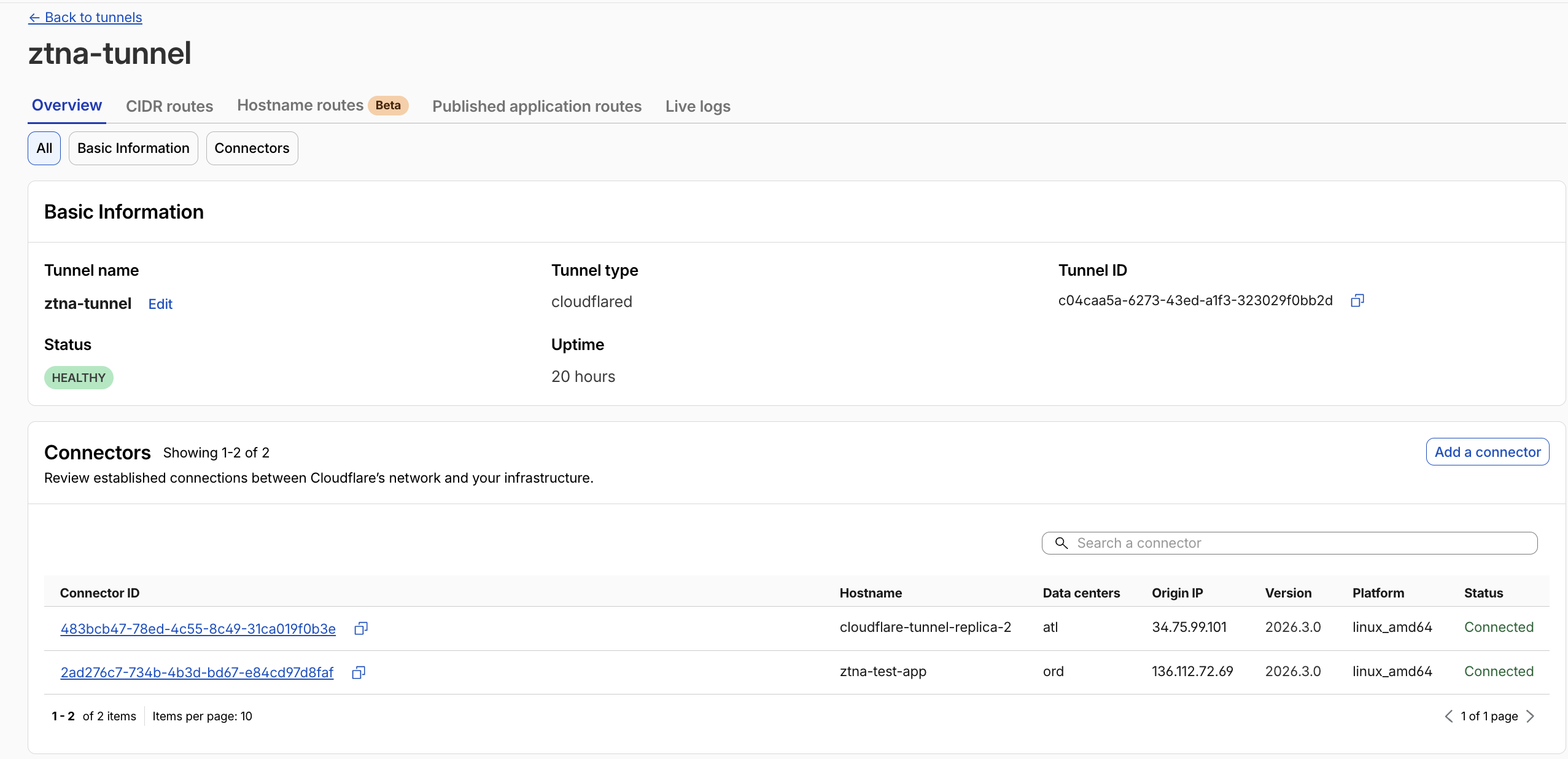
Tunnel replica configuration for high availability with both connectors healthy
Public Hostname
Configuration for access by hostname. Additional cloudflared settings may be required for SSH, RDP, and SMB.
Private Network
Configuration for access by private IP (via WARP). The IP must be included in WARP Split Tunnels.
Cloudflare Tunnel Use Cases
Cloudflare Tunnel can be used in a variety of scenarios. Below are the most common use cases:
| Use Case | Description | Required Components |
|---|---|---|
| Publishing Web Apps | Securely publish internal web applications (Jenkins, GitLab, internal portals, etc.) over the internet. Accessible from a browser without a VPN. | Tunnel + Access + Public Hostname |
| SSH / RDP Access | Developers and system administrators connect to servers remotely via SSH/RDP. Browser-based terminal (Browser Rendering) is also available. | Tunnel + Access + cloudflared (client-side) |
| Private Network Access (WARP to Tunnel) | Access private IP resources (internal APIs, databases, file servers, etc.) via the WARP client. | Tunnel + WARP + Private Network configuration |
| Temporary Dev Environment Exposure | Temporarily expose a local development environment externally for testing or demos. Instantly publishable with cloudflared tunnel --url. |
cloudflared (Quick Tunnel) |
| Multi-cloud / Hybrid Connectivity | Connect and manage multiple environments (AWS, Azure, GCP, on-premises, etc.) in a unified manner via Cloudflare. | Tunnel Connector in each environment |
Tunnel Capacity and Sizing
Unlike traditional VPNs, Tunnel throughput is primarily limited not by server memory or CPU, but by the number of ports available on the system.
| Item | Recommended Value | Notes |
|---|---|---|
| Baseline Configuration | 2 replicas / location | For redundancy and traffic distribution |
| Host Specs | 4GB RAM / 4 CPU cores (minimum) | For the cloudflared process |
| Port Allocation | 50,000 ports / host | For TCP/UDP traffic |
| User Capacity Estimate | Approx. 4,000 users / host | A 2-host configuration supports approx. 8,000 users |
- Add replicas: Handle traffic increases within the same location. Launch multiple cloudflared instances using the same Tunnel token
- Separate Tunnels: Create separate Tunnels per IP range for geographically distributed networks or when ports are exhausted
WARP to Tunnel (Private Network Access)
WARP to Tunnel is a configuration that uses the WARP client to access resources within a private network. It can completely replace a traditional VPN.
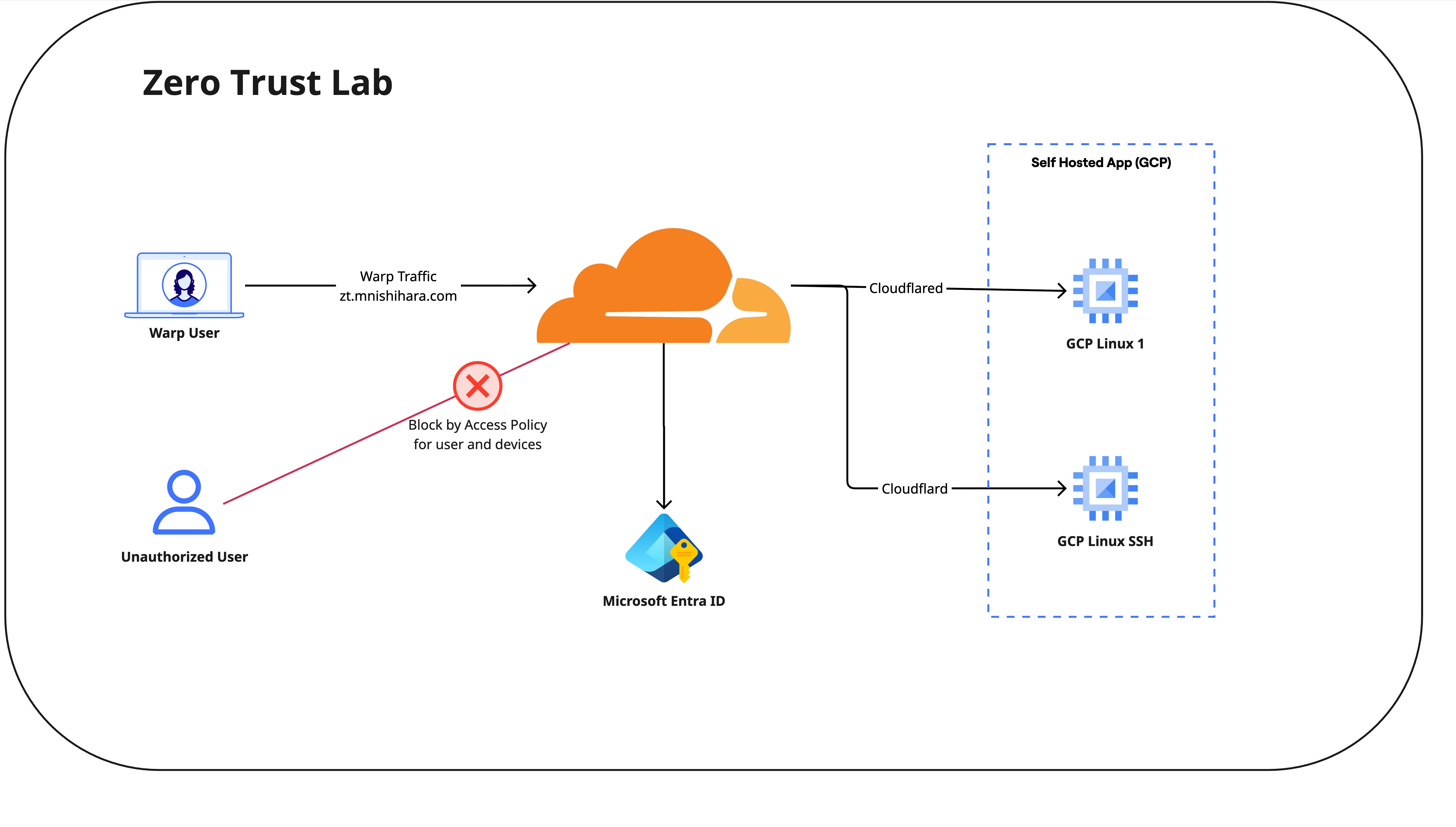
Setup Steps:
- Create a Tunnel and install
cloudflaredin your on-premises environment - Add private IP ranges (CIDR) in the Tunnel's "Private Networks" tab
Example:192.168.1.0/24,10.0.0.0/8 - Verify that the added IP ranges are Included in the WARP Split Tunnel settings
* In Exclude mode, remove the relevant IPs from the exclusion list - Configure Access Policies to restrict which users/groups can access
192.168.1.100). If DNS name resolution is needed, configure Local Domain Fallback.For Individual Developers: Quick Tunnel
Quick Tunnel (formerly TryCloudflare) is a feature that lets you instantly expose your local environment without any configuration. It's ideal for testing and demoing apps under development.
# Instantly expose a local web server (port 3000)
$ cloudflared tunnel --url http://localhost:3000

# Output example:
# Your quick Tunnel has been created! Visit it at:
# https://random-words-here.trycloudflare.com
✅ Quick Tunnel Benefits
- Available instantly without a Cloudflare account
- HTTPS is automatically enabled
- Ideal for webhook testing, demos, and temporary sharing
- Starts with a single command
⚠️ Limitations
- URL is randomly generated (cannot be fixed)
- No authentication protection via Access
- Not recommended for production environments
- URL is invalidated when the session ends
SSH / RDP Browser Access (Browser Rendering)
By combining Cloudflare Access and Tunnel, you can use SSH and RDP directly from the browser. There is no need to install cloudflared on the client side — users can access them using only a browser.
| Protocol | Access Method | Configuration |
|---|---|---|
| SSH | In-browser terminal | Enable "Browser rendering" in the Access Application |
| RDP | In-browser remote desktop | Enable "Browser rendering" in the Access Application |
| VNC | In-browser VNC client | Enable "Browser rendering" in the Access Application |
cloudflared on the client side and access via the cloudflared access ssh or cloudflared access rdp commands.Retrieving Tunnel Logs
Enabling Debug Logs (--loglevel debug)
When to use: Use this when troubleshooting Tunnel connection issues, performance problems, or unexpected behavior. If standard logs lack sufficient information, enabling debug-level logging provides detailed connection information, error causes, and request processing status.
# Linux — Add --loglevel debug and restart
# Edit the cloudflared.service file and add --loglevel debug to the ExecStart line
$ vi /etc/systemd/system/cloudflared.service
# Example: ExecStart=/usr/bin/cloudflared --loglevel debug tunnel run ...
$ systemctl daemon-reload
$ systemctl restart cloudflared.service

# Retrieve logs (from the machine where cloudflared is installed)
$ cloudflared tunnel login
$ cloudflared tail <UUID>
$ cloudflared tail <UUID> > tunnel_log.txtIf You Have Connection Issues: Checking Firewall Settings
Cloudflare Tunnel implements a "positive security model" that only allows outbound (Egress) traffic from cloudflared and blocks all inbound (Ingress) traffic. If you have connection issues, verify that the following IPs/ports are allowed in your firewall.
| Purpose | Domain / IP | Port |
|---|---|---|
| Tunnel Connection (Region 1) | region1.v2.argotunnel.com198.41.192.0/24 |
TCP/UDP 7844 |
| Tunnel Connection (Region 2) | region2.v2.argotunnel.com198.41.200.0/24 |
TCP/UDP 7844 |
| SNI Verification (Optional) | cftunnel.comh2.cftunnel.com (HTTP/2)quic.cftunnel.com (QUIC) |
TCP/UDP 7844 |
cloudflared connects to Cloudflare using QUIC (UDP) or HTTP/2 (TCP) on port 7844. If your firewall supports FQDN-based rules, allow the domain names; if IP-based rules are required, allow the IP addresses.Connection Monitoring with DEX (Digital Experience Monitoring)
DEX (Digital Experience Monitoring) is a feature that provides visibility into the performance of devices, networks, and applications across your entire Zero Trust organization. It can be used to isolate connection issues (device / network / Cloudflare) and investigate performance degradation.
| Feature | Description | Use Case |
|---|---|---|
| Fleet Status | Real-time monitoring of WARP client status and endpoint connectivity | Verifying overall device health, identifying WARP connection issues |
| HTTP Tests | Periodically measures status codes and response times for specified URLs | Monitoring availability of internal apps via Tunnel, SaaS apps |
| Traceroute Tests | Measures latency per hop and visualizes the network path | Identifying where latency occurs, isolating network issues |
| Remote Capture | Remotely collects diagnostic logs and packet captures from user devices | Detailed investigation of individual user connection issues |
| Notifications | Sends alert notifications when connection degradation or performance drops are detected | Early detection of issues, proactive response |
Cloudflare SWG Features and Configuration
What is Cloudflare Gateway (SWG)
Cloudflare Gateway functions as a Secure Web Gateway (SWG), a cloud-based security service that inspects, filters, and protects your organization's internet traffic. It replaces traditional on-premises proxies and firewalls, protecting users regardless of location.
Gateway Inspection Layers
Gateway inspects traffic at the following 3 layers, each with its own policy type:
| Layer | Inspection Target | Primary Use Cases |
|---|---|---|
| DNS | DNS queries (domain name resolution) | Blocking malicious domains, content filtering, shadow IT detection |
| Network | IP addresses, ports, protocols | Blocking vulnerable ports, restricting traffic to specific IPs, protocol control |
| HTTP | HTTP/HTTPS requests (URL, headers, body) | Detailed URL filtering, file type restrictions, DLP, malware scanning |
Configuring DNS Filtering
- Enable activity logging for Gateway DNS logs in Settings > Network
- Access any URL from a browser and verify that DNS logs are being captured
- Configure recommended policies / configure individual policies in Traffic Policies > Firewall Policies > DNS (optional)
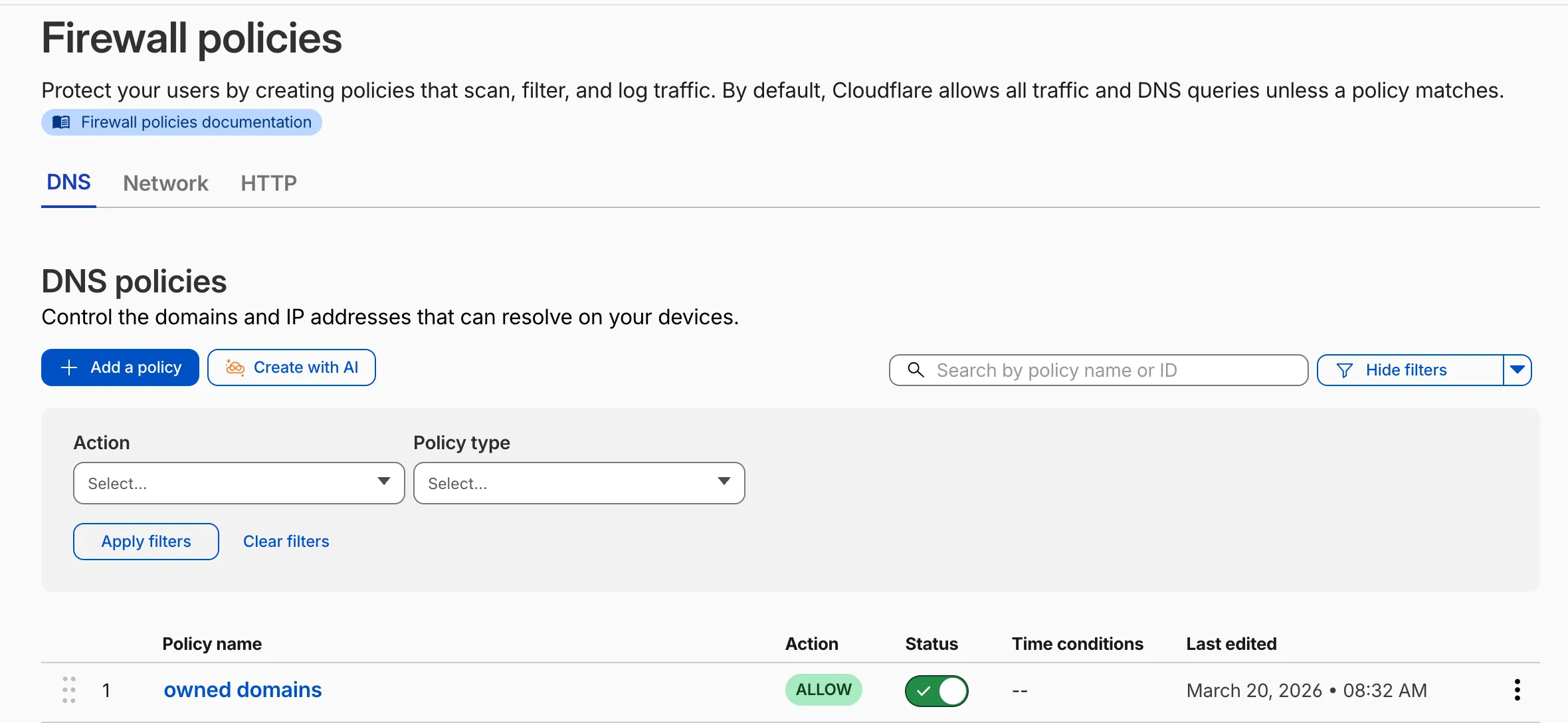
Recommended Block Categories
Cloudflare Gateway classifies domains by category and can block them via DNS policies. We recommend blocking the following categories.
Cloudflare Docs — Domain categories🔒 Security Categories (Recommended)
Why block: Protects the organization from security risks such as malware infections, phishing attacks, and data leaks.
- Malware — Malware distribution sites
- Phishing — Phishing sites
- Command and Control — C2 servers
- Botnet — Botnet-related
- Spyware — Spyware distribution
- Cryptomining — Cryptocurrency mining
- Newly Seen Domains — Newly registered domains (high risk)
- DGA Domains — Domain generation algorithm
📋 Content Categories (Corporate Policy Violations)
Why block: Prevents access to content that violates corporate compliance policies and maintains productivity.
- Adult Themes — Adult content
- Gambling — Gambling sites
- Drugs — Illegal drug-related
- Weapons — Weapons-related
- Violence — Violent content
- Questionable Content — Inappropriate content
cloudflare.com is classified under the "Technology" category.
- Dashboard UI: Search by domain name, IP address, or hostname in Security Center > Investigate. You can check categories, threat data, Passive DNS records, etc.
- Cloudflare Radar: Search for domain information on Cloudflare Radar
- Bulk check (API): Use the Intel API to check multiple domains
GET /accounts/{account_id}/intel/domain-history?domain=example.com - Category change request: If misclassified, submit feedback from Security Center > Investigate or Radar
Recommended DNS Policy List
Below are examples of DNS policies recommended by Cloudflare. Customize according to your organization's security requirements.
| Policy Name | Selector | Operator | Value | Action | Purpose |
|---|---|---|---|---|---|
| Block security threats | Security Categories | in | All Security Risks | Block | Block malware, phishing, C2 servers, etc. |
| Block inappropriate content | Content Categories | in | Adult Themes, Gambling, etc. | Block | Block content that violates corporate policies |
| Block newly seen domains | Security Categories | in | Newly Seen Domains | Block | Recently registered domains (easily exploited for attacks) |
| Block DGA domains | Security Categories | in | DGA Domains | Block | Domains created by domain generation algorithms |
| Allow specific domain | Domain | is | example.com | Allow | Allowlist domains required for business operations |
| Block specific domain | Domain | matches regex | .*\.torrent\..* | Block | Block P2P file-sharing sites |
How to Check Gateway DNS Logs
To verify your configured policies are working, check the Gateway activity logs. Access Logs > Gateway from the dashboard to view DNS, Network, and HTTP logs.
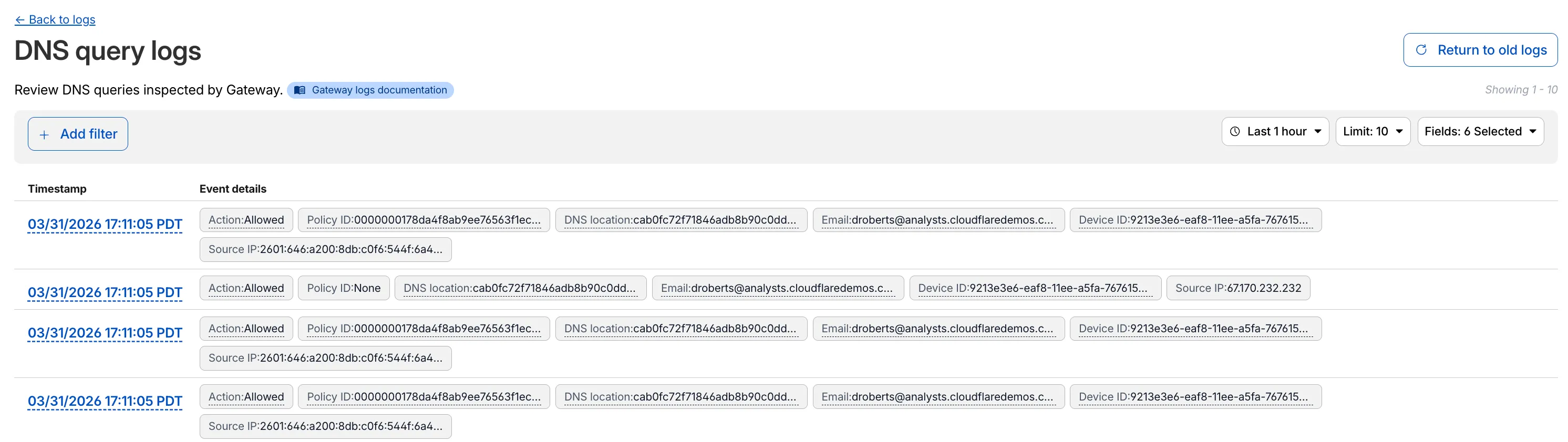
Configuring Network Filtering
- Verify that TCP Proxy is enabled in Settings > Network
- Enable UDP and ICMP as needed
- Enable activity logging for Gateway Network logs in Settings > Network
- Configure recommended policies / configure individual policies in Traffic Policies > Firewall Policies > Network (optional)
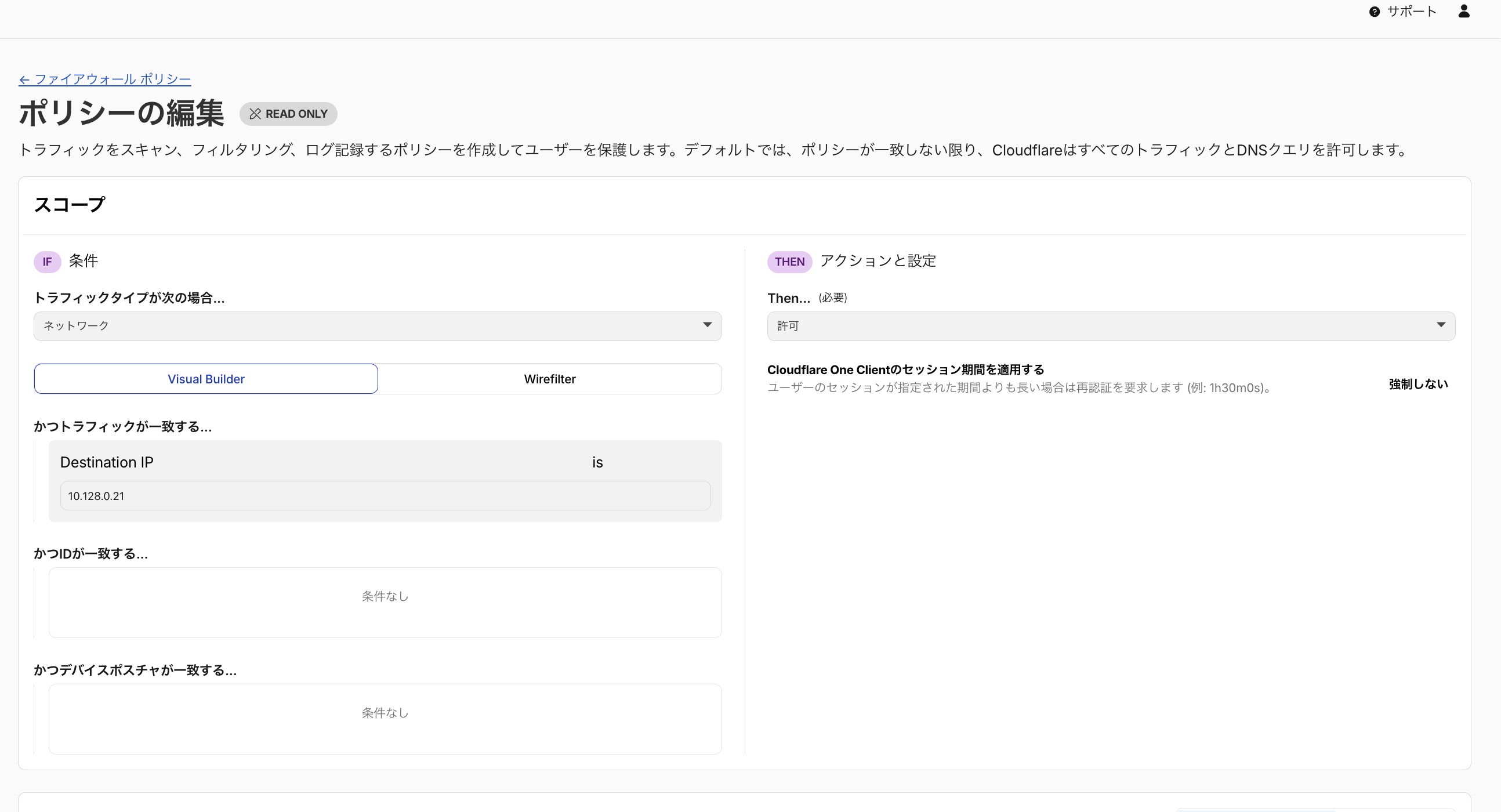
Recommended Network Policies
Network policies can block traffic based on destination ports and IP addresses. We recommend configuring the following policies.
Cloudflare Docs — Network policies🚫 Blocking Vulnerable Ports
Why block: These ports are easily exploited by attackers and carry risks of malware spread and data leaks.
| Port | Protocol | Risk |
|---|---|---|
| 20, 21 | FTP | Plaintext communication, credential leaks |
| 23 | Telnet | Plaintext communication, remote access abuse |
| 25 | SMTP | Spam sending, mail relay abuse |
| 135-139, 445 | SMB/NetBIOS | Ransomware spread (WannaCry, etc.) |
| 1433, 1434 | MSSQL | Database attacks |
| 3389 | RDP | Brute force attacks, ransomware |
| 5900 | VNC | Remote access abuse |
🌐 Blocking Destination IPs
Why block: Blocks traffic to known malicious IP addresses or regions not permitted by corporate policy.
Use cases:
- Threat intelligence integration — Block known C2 server IPs
- Geographic restrictions — Restrict traffic to specific countries/regions
- Shadow IT prevention — Block IP ranges of unapproved cloud services
- Data leak prevention — Restrict traffic to external file-sharing services
Configuration example: Destination IP in 192.0.2.0/24 → Block
Recommended Network Policy List
Below are examples of network policies recommended by Cloudflare.
| Policy Name | Selector | Operator | Value | Action | Purpose |
|---|---|---|---|---|---|
| Block SMB ports | Destination Port | in | 135, 136, 137, 138, 139, 445 | Block | Prevent ransomware spread (WannaCry, etc.) |
| Block Telnet | Destination Port | is | 23 | Block | Prevent credential leaks via plaintext communication |
| Block FTP | Destination Port | in | 20, 21 | Block | Block plaintext file transfers |
| Block RDP | Destination Port | is | 3389 | Block | Block external RDP connections |
| Allow SSH | Destination Port | is | 22 | Allow | Allow encrypted remote access |
| Block specific IPs | Destination IP | in | (Threat IP list) | Block | Block traffic to known malicious IPs |
Configuring HTTP Filtering
- Configure TLS decryption (Settings > Network)
- Install the TLS certificate on each device
- Enable activity logging for Gateway HTTP logs in Settings > Network
- Configure recommended policies / configure individual policies in Traffic Policies > Firewall Policies > HTTP
Recommended HTTP Policy List
Below are examples of HTTP policies recommended by Cloudflare. HTTP policies are most effective when TLS decryption is enabled.
| Policy Name | Selector | Operator | Value | Action | Purpose |
|---|---|---|---|---|---|
| Block security threats | Security Risks | in | All Security Risks | Block | Block malware, phishing, and other threats |
| Block dangerous file types | Download File Types | in | exe, dll, bat, cmd, ps1, vbs | Block | Prevent downloading executable files |
| Malware scan | Download File Types | in | All File Types | Scan | Malware scan of downloaded files |
| Block uploads | Upload File Types | in | (Sensitive file types) | Block | Prevent external uploads of sensitive data |
| Exclude from TLS inspection | Application | in | Zoom, Teams, etc. | Do Not Inspect | Exclude apps that use certificate pinning |
| Browser isolation | Security Risks | in | Suspicious, Unknown | Isolate | Isolate suspicious sites with RBI |
| Make SaaS apps read-only | Application | in | Google Drive, Dropbox | Isolate (disable uploads) | Prevent uploads to personal SaaS accounts |
Configuring Egress Policies
Requires the purchase of Dedicated Egress IPs. Once configured, specific traffic can be routed outbound from a designated Egress IP. This is useful for system integrations that require a fixed source IP (e.g., SaaS services with IP allowlist restrictions).
Cloudflare Docs — Egress policiesConfiguring Resolver Policies
You can switch the DNS Resolver applied per request. Note the differences from Local Domain Fallback.
| Method | DNS Filtering | Use Case |
|---|---|---|
| Default DNS Resolver (1.1.1.1) | ✅ Applied | Standard external name resolution |
| Resolver Policy (internal DNS specified) | ✅ Applied | Use internal DNS while maintaining filtering |
| Local Domain Fallback | ❌ Not applied | Internal name resolution bypassing Cloudflare |
Tenant Control
This feature allows access only to corporate-approved SaaS accounts and blocks access via personal accounts. It works by injecting custom headers specific to each SaaS application into traffic passing through Gateway.
| Supported Application | Custom Header |
|---|---|
| Microsoft 365 | Restrict-Access-To-Tenants, Restrict-Access-Context |
| Google Workspace | X-GooGApps-Allowed-Domains |
| Slack | X-Slack-Allowed-Workspaces |
| Dropbox | X-Dropbox-allowed-Team-Ids |
| ChatGPT | Chatgpt-Allowed-Workspace-Id |
Configuring DNS Locations
DNS filtering can be applied to devices without WARP installed (agentless) by pointing their resolver to a DNS Locations endpoint. This is suitable for office routers and devices with static IPs.
Cloudflare Docs — Add locationsConfiguring Proxy Endpoints
HTTP filtering can be applied to devices without WARP installed by specifying a Proxy Endpoint in the device's PAC file.
Cloudflare Docs — PAC filesGateway Rule Evaluation Order
Cloudflare Gateway allows you to use DNS / Network / HTTP policies in combination. Traffic is evaluated against policies in the following order.
Priority Between Policy Builders
Gateway applies policies in the following order:
Evaluation Order Within HTTP Policies
HTTP policies are applied based on a combination of action type and priority:
Precedence Principles
Within each policy builder, the First Match principle applies. When traffic matches an Allow or Block policy, evaluation stops and subsequent policies are not evaluated.
| Recommendation | Description |
|---|---|
| High priority (lower number) | Set the most specific policies and exceptions |
| Low priority (higher number) | Set the most general policies |
Leveraging the Do Not Inspect Action
Do Not Inspect is an action that bypasses TLS decryption (inspection) for specific traffic. Use it for apps that use certificate pinning or services that are incompatible with TLS inspection.
| Method | TLS Inspection | Logging | Use Case |
|---|---|---|---|
| Do Not Inspect | ❌ Bypassed | ✅ Logged | Certificate pinning apps, TLS-incompatible services |
| Split Tunnel (Exclude) | ❌ Bypassed | ❌ Not logged | Bandwidth savings, complete bypass |
When to use Do Not Inspect:
- During troubleshooting — If an app doesn't work with TLS inspection, first check if Do Not Inspect resolves the issue. Since logs are retained, root cause identification is easier
- Maintaining visibility — When you can't inspect traffic but still want to know which users accessed which services and when
- Gradual exclusion — Before fully excluding with Split Tunnel, use Do Not Inspect to assess impact while reviewing logs
- Compliance requirements — When specific traffic cannot be inspected but access records are required
Remote Browser Isolation (RBI)
RBI Overview
Remote Browser Isolation (RBI) is a security technology that executes web browsing in an isolated cloud environment to protect endpoints. Only safe rendering results are sent to the user's browser, preventing malware and malicious code from reaching the local device.
To apply RBI, create a policy in Traffic Policies > Firewall Policies > HTTP and select Isolate as the action. By applying the Isolate action to specific categories (e.g., security risks, uncategorized sites) or specific domains/URLs, you can safely browse high-risk web content in an isolated environment.
RBI Operating Modes
| Mode | Description | Characteristics |
|---|---|---|
| Clientless Isolation | Isolates the browser via a dedicated URL | No agent required, ideal for accessing specific apps |
| WARP + Gateway integration | Applies the Isolate action via HTTP policies | Works transparently, users are unaware of isolation |
Benefits of RBI
⚡ Minimal Latency Impact
Runs on Cloudflare's global network, resulting in less latency compared to traditional RBI solutions
🛡️ Protection from Zero-Day Attacks
Unknown malware and exploits never reach the endpoint
🔒 Data Leak Prevention
Ability to restrict operations such as copy & paste, downloads, and printing
👤 Preserved User Experience
Provides a browsing experience similar to normal browsing
RBI Use Cases
| Use Case | Description | Configuration Example |
|---|---|---|
| Accessing sensitive assets | Prevent data exfiltration when accessing internal sensitive systems | Isolate + disable copy when accessing specific domains |
| Browsing high-risk sites | Browse uncategorized or newly seen domains in an isolated environment | Apply Isolate action to Security Risk categories |
| BYOD / Unmanaged devices | Protect when accessing internal resources from personal devices | Isolate specific apps with Clientless Isolation |
| Safe use of generative AI | Use ChatGPT etc. in an isolated environment to prevent pasting of sensitive data | Isolate + disable paste on AI domains |
Cloudflare CASB Features and Configuration
DLP / CASB / Device Posture Overview
Cloudflare Zero Trust provides multiple features for data protection and security posture management. Understanding the differences between each feature helps you deploy the right combination.
| Feature | Scan Target | Role | Notes |
|---|---|---|---|
| DLP | Data content | Scans and evaluates sensitive information in traffic and files | Filtering in Gateway based on evaluation results |
| CASB | Configuration (posture) | Scans and evaluates security settings of SaaS apps | DLP feature required for file scanning |
| CASB + DLP | Both data and configuration (data + posture) | Scans files and traffic content in SaaS / cloud storage | Combines DLP file scanning with CASB |
| Device Posture | Device information (posture) | WARP scans the state of user devices | Implement blocking etc. via Gateway / Access policies |
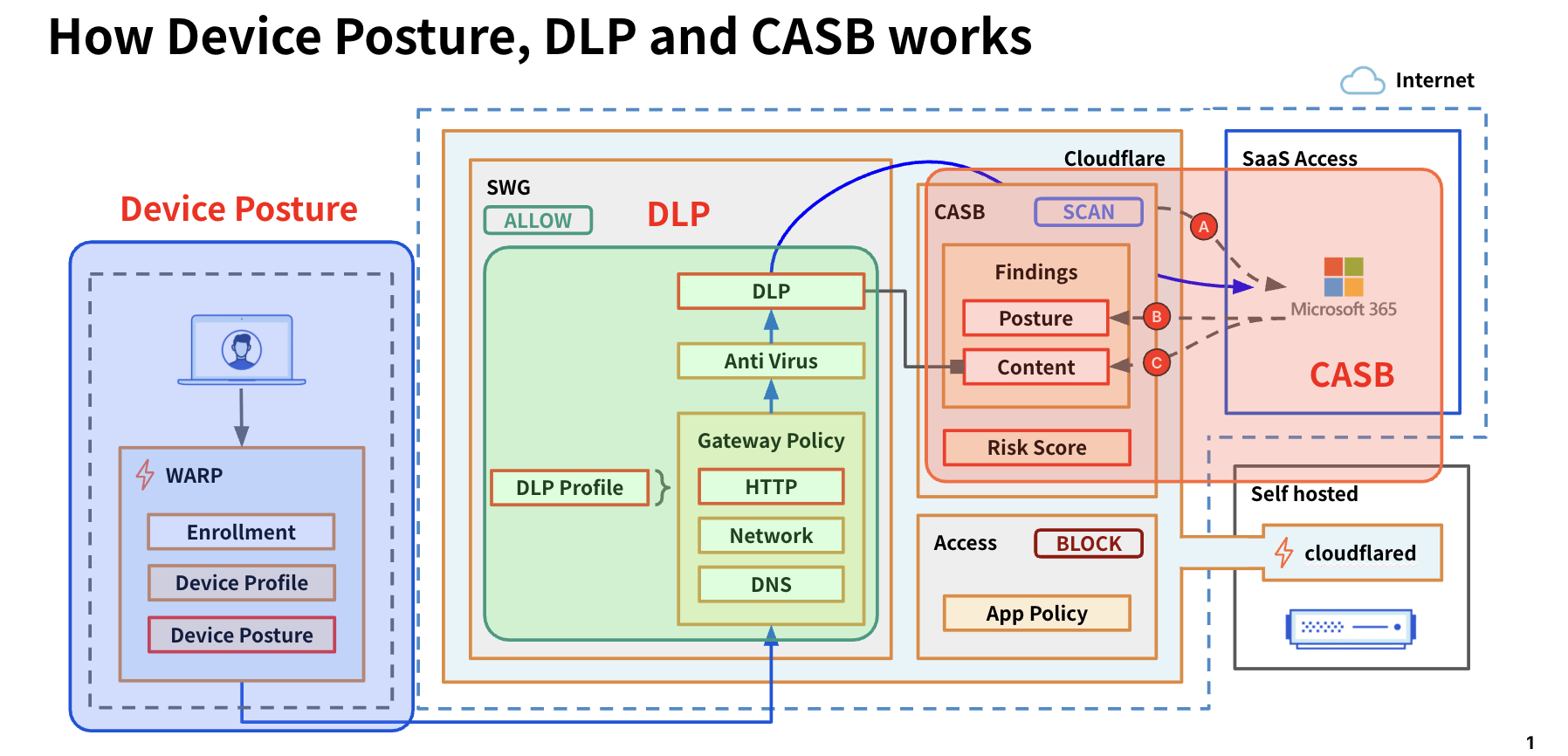
What is Cloudflare CASB
Cloudflare CASB (Cloud Access Security Broker) is a service that provides visibility into the security posture of SaaS applications used by your organization and detects misconfigurations and data leak risks. Through API integration, it can directly scan data and user activity within SaaS apps.
CASB Operating Modes
| Mode | How It Works | Characteristics |
|---|---|---|
| API mode | Connects directly to SaaS app APIs to scan | No agent required, can inspect existing data, periodic automatic scans |
| Inline mode | Real-time inspection of traffic via Gateway | Real-time protection, works with DLP, inspects during uploads/downloads |
Risks Detectable by CASB
⚠️ Misconfigurations
Public sharing links, excessive access permissions for external users, accounts without MFA
👻 Shadow IT
Detects usage of unapproved SaaS applications
🔓 Data Leak Risks
External sharing of sensitive files, data transfers to personal accounts
📋 Compliance Violations
Data retention policy violations, geographic restriction violations
Supported SaaS Applications (Examples)
Finding Severity Levels
| Severity | Description | Response Priority |
|---|---|---|
| Critical | Critical security risks requiring immediate action (e.g., fully public files, unauthenticated external sharing) | Highest priority |
| High | Significant misconfigurations or excessive permissions (e.g., edit permissions for everyone, MFA disabled) | Address within 48 hours |
| Medium | Risky configurations (e.g., suspicious external users, excessive app integration permissions) | Address within 1 week |
| Low | Recommended improvements (e.g., inactive users, outdated settings) | Address during periodic reviews |
Content Finding Types and Responses
| Finding Category | Example Detections | Recommended Response |
|---|---|---|
| Data leak risk | External sharing links for sensitive files, public access settings | Remove sharing links / restrict permissions |
| Misconfiguration | Users without MFA, excessive admin permissions | Enforce MFA / minimize permissions |
| Shadow IT | Use of unapproved SaaS tools, unknown app integrations | Establish app integration approval process / block |
| User risk | Remaining accounts of former employees, inactive users | Disable / delete accounts |
| Compliance | Data retention policy violations, data stored outside geographic restrictions | Review policy settings / migrate data |
Finding Response Flow
- Review the list in Cloud & SaaS findings > Findings → Filter by Severity (Critical / High first)
- Review Finding details → Identify affected files, users, and settings
- Fix settings on the SaaS app side (e.g., remove sharing links, enable MFA)
- After the next automatic scan, confirm the Finding has been resolved (Active Instances cleared)
- For recurring Findings, consider controlling via Gateway / Access policies
Adding an Integration
- Go to Cloud & SaaS findings > Integrations and click "Add integration"
- Select the SaaS Integration → Follow the instructions to configure → Click "Save"
- Review security issues on the Finding page
Pausing / Removing an Integration
- Go to Cloud & SaaS findings > Integrations and select "Configure" for the target Integration
- Disable "Scan for findings" (pause) or click "Disenroll" (remove)
Cloudflare DLP Features and Configuration
What is Cloudflare DLP
Cloudflare DLP (Data Loss Prevention) is a service that prevents sensitive data leaks. It scans HTTP traffic and file contents to detect and block sensitive data such as credit card numbers, personal information, and source code from leaving the organization.
- Detection is performed on traffic passing through Gateway
- TLS inspection is required for operation
- Affected by Do Not Inspect / Scan policies and Split Tunnel settings
- Post-detection actions (BLOCK, etc.) are configured in Gateway HTTP policies
File Formats and Size Limits Scannable by DLP
| Category | Supported Formats |
|---|---|
| Text | Text files (.txt), CSV |
| Microsoft Office | Word (.docx), Excel (.xlsx), PowerPoint (.pptx) *2007 and later, including Microsoft 365 |
| .pdf (scans text content) | |
| ZIP (compressed) | ZIP files containing the above formats (up to 10 levels of recursive extraction) |
📦 Managed Profiles
Predefined detection patterns provided by Cloudflare. Immediately detects PII, credit cards, source code, etc. Easy to deploy with no configuration effort.
🔧 Custom Profiles
Define custom detection patterns using regular expressions and keywords. Can detect organization-specific data such as employee IDs, project codes, etc.
DLP Detection Targets
| Category | Detection Examples | Notes |
|---|---|---|
| AI Prompts | Security, Customer, Financial Information, PII, Technical | Detects sensitive information input to generative AI + Prompt Protection / Guardrails supported |
| Credentials / Passwords | GCP / AWS / Azure API keys, SSH keys | Prevents cloud credential leaks |
| Financial Information | Credit card numbers, VISA card numbers | PCI-DSS compliance |
| Health Information (PHI) | FDA active ingredients / drug names, ICD-10 codes | Medical data protection |
| Social Security / ID Numbers | Social security numbers, insurance numbers, taxpayer IDs | *Japan's My Number is not supported natively (available via custom profile) |
| Source Code | C, C++, C#, Go, Java, JavaScript, Python, Rust, Swift, etc. | Intellectual property protection, prevent external code sharing |
| Custom Patterns | Defined via regex (employee IDs, project codes, My Number, etc.) | Organization-specific data protection requirements |
Addressing Generative AI (ChatGPT, etc.)
The risk of data leaks from employees inputting sensitive information into generative AI services is increasing. DLP enables the following countermeasures:
💻 Source Code Detection
Detect and block code pasting into ChatGPT, Claude, Gemini, etc.
🔐 Sensitive Data Detection
Prevent input of customer information and financial data
📁 File Upload Inspection
Scan file contents when uploading to generative AI
📝 Logging
Record which users attempted to input what data (for auditing)
chat.openai.com, claude.ai, etc.) in HTTP policies and apply a DLP Profile.🎬 Related Demo Videos
DLP Deployment Methods
| Method | Description | Requirements |
|---|---|---|
| Inline Inspection | Scan traffic in real time via Gateway HTTP policies | WARP client + TLS inspection enabled |
| CASB Integration | Scan existing data in SaaS apps via API | CASB Integration configured |
Configuring DLP Profiles
- Go to DLP > DLP Profile and select the target Managed Profile → "Configure"
- Select the Detection Entries you want to enable → "Save Profile"
- Add Custom Profiles as needed
Commonly Used Managed Profiles
| Profile Name | Detection Target | Use Case |
|---|---|---|
| Financial Information | Credit card numbers, bank account numbers | PCI-DSS compliance |
| Credentials and Secrets | API keys (AWS / GCP / Azure), SSH keys, passwords | Prevent cloud credential leaks |
| Source Code | Python, JavaScript, Java, Go, Rust, etc. | Intellectual property protection, prevent input to generative AI |
| AI Prompt | Security, Customer, Financial, PII, Technical information | Detect sensitive information input to generative AI |
Common DLP Policy Examples
| Policy | Description | Action |
|---|---|---|
| Log Uploads / Downloads | Log when Financial Information is uploaded / downloaded to file-sharing apps | Allow (log only) |
| Block File Types | Block upload / download of specific file formats (.docx, .pdf, etc.) | Block |
| Block Specific Users | Block sensitive data uploads for specific groups only (e.g., contractors) | Block (with Identity condition) |
Creating a DLP Policy
- Generate a key pair with matched-data-cli:
$ ./matched-data-cli generate-key-pair - Go to Traffic policies > Traffic settings and enter the public key in "Set a DLP payload and prompt encryption public key" → Save
- Go to Security > Data Loss Prevention > DLP Profiles to create / edit profiles
- Go to Traffic Policies > Firewall Policies > HTTP → "Add a policy" → Select "DLP Profile" in the Selector
- Check "Log the payload of matched rule" → "Create a policy"
Reviewing DLP Logs
- Go to Logs > Gateway > HTTP and filter by DLP policy
- Select the relevant record → "Decrypt payload log" and enter the Private Key
CASB Integration — Scan for Sensitive Data
By combining CASB and DLP, you can detect sensitive data leaks in SaaS apps. Results can be reviewed in both CASB Findings and DLP logs.
Cloudflare Docs — Scan for sensitive dataAutomation
To automate deployments, configuration changes, and rollbacks, use the following:
🏗️ Terraform
Infrastructure as Code management. Use cf-terraforming to migrate from the Dashboard UI to Terraform.
MDM-Only Features
The following features cannot be configured via the Dashboard or API and are only configurable through MDM (Intune, JAMF, etc.). MDM parameters take precedence over Dashboard settings.
MDM-Only Parameters
| Category | Parameter | Description | Example Value |
|---|---|---|---|
| WARP UI | onboarding |
Show/hide the privacy policy confirmation screen on first launch | false (hidden) |
| WARP Connection | environment |
Connection settings for FedRAMP High environment | fedramp_high |
| WARP Connection | override_api_endpoint |
Override API communication destination IP (e.g., for China partner) | 1.2.3.4 |
| WARP Connection | override_warp_endpoint |
Override WARP traffic destination | 203.0.113.0:500 |
| DNS | override_doh_endpoint |
Override DoH communication destination (DNS only mode) | 1.2.3.4 |
| WARP Connection | enable_pmtud |
Enable Path MTU Discovery | true |
| Windows | enable_netbt |
Enable NetBIOS over TCP/IP (Windows) | true |
| Security | enable_post_quantum |
Enable post-quantum cryptography | true |
| Windows | multi_user |
Enable multi-user enrollment on Windows | true |
| Windows | pre_login |
WARP connection before Windows login | true |
| Mobile | unique_client_id |
Device UUID assignment (iOS/Android) | 496c6124-... |
| Organization Management | configs |
Configuration for switching between multiple Zero Trust organizations | Array format |
Android Per-app VPN (MDM Only)
Configuring specific apps to route through the WARP tunnel on Android devices is only possible via MDM.
| Category | Parameter | Description |
|---|---|---|
| WARP Mobile | app_identifier |
Package name of the app to tunnel (e.g., com.example.app) |
| WARP Mobile | is_browser |
Specify whether the app is a browser (for re-authentication and block notifications) |
auth_client_id / auth_client_secret) can also be configured through MDM.API-Only Features
The following features cannot be configured via the Dashboard and are only configurable through the API or Terraform.
Account ID — In the Cloudflare Dashboard right sidebar (with any domain selected), or navigate to
dash.cloudflare.com → select the target account, and find /accounts/this-is-your-Account-ID in the URL.Zone ID — Select a domain in the Dashboard → the Zone ID is displayed in the "API" section of the right sidebar.
dash.cloudflare.com → User icon (top right) → My Profile → API Tokens → Create TokenThe easiest way to call Zero Trust APIs is to select the Edit Cloudflare Zero Trust template. If creating a custom token, the following permissions are required:
- Account / Zero Trust / Edit — Read/write Zero Trust resources (Access, Gateway, WARP, DLP, etc.)
- Zone / Zone / Read — Required for endpoints that use Zone ID (e.g.,
/zones/{zone_id}/devices/policy/certificates) - Account / Account Settings / Read — Required for Account ID verification and some endpoints
Authorization: Bearer <TOKEN> header.
API-Only Configuration Items
| Category | Feature | Description | API Endpoint | Link |
|---|---|---|---|---|
| WARP / mTLS | Posture Only Mode Client Certificates |
To enable Posture Only mode, client certificate provisioning must be enabled via the API | PATCH /zones/{zone_id}/devices/policy/certificates |
Docs ↗ |
| Access | Legacy Policy Conversion | Convert legacy policies to reusable policies | PUT /accounts/{account_id}/access/apps/{app_id}/policies/{policy_id}/make_reusable |
Docs ↗ |
| WARP | Custom Device Posture | Custom device posture checks that call external APIs (WARP service-to-service integration) | POST /accounts/{account_id}/devices/posture/integration |
Docs ↗ |
| Gateway | Connectivity Settings | Configure icmp_proxy_enabled and offramp_warp_enabled |
PATCH /accounts/{account_id}/zerotrust/connectivity_settings |
API ↗ |
| Access | Infrastructure Targets Batch Operations |
Batch add/delete infrastructure targets | PUT /accounts/{account_id}/infrastructure/targets/batch |
API ↗ |
| Access | Service Token Rotation | Rotate the Client Secret of a service token | POST /accounts/{account_id}/access/service_tokens/{uuid}/rotate |
API ↗ |
| WARP | Global WARP Override | Emergency kill switch to force WARP connections on/off account-wide. Can disconnect WARP on all devices during incidents | POST /accounts/{account_id}/devices/resilience/global_warp_override |
API ↗ |
| Gateway | PAC File Management | Create, update, and delete PAC (Proxy Auto-Configuration) files for Gateway proxy. No management UI in Dashboard | POST /accounts/{account_id}/gateway/pac_files |
API ↗ |
| Access | Access Keys Rotation | Configure the rotation interval for Access JWT signing keys and perform immediate manual rotation | POST /accounts/{account_id}/access/keys/rotate |
API ↗ |
| Gateway | SSH Audit Seed Rotation | Rotate the account seed for SSH session audit logs (rotate_seed operation is API-only) |
POST /accounts/{account_id}/gateway/audit_ssh_settings/rotate_seed |
API ↗ |
| DLP | Payload Logs Public Key Configuration | Advanced settings including specifying the public key for encrypting and storing payloads matching DLP policies | PUT /accounts/{account_id}/dlp/payload_log |
API ↗ |
| Risk Score | Risk Score Integrations | Create and manage integrations to send user risk scores to external SIEM/SOAR (including non-Okta) | POST /accounts/{account_id}/zt_risk_scoring/integrations |
API ↗ |
Features Configurable in Dashboard but with More Granular Control via API
| Category | Feature | Additional API Capabilities | API Endpoint | Link |
|---|---|---|---|---|
| Risk Score | Risk Behaviors | Bulk enable/disable behaviors and change risk levels | PUT /accounts/{account_id}/zt_risk_scoring/behaviors |
API ↗ |
| WARP | Device Settings | Some settings like external_emergency_signal_enabled are API-only |
PUT /accounts/{account_id}/devices/settings |
API ↗ |
| Access | Access Users | Retrieve active sessions, failed logins, and last seen identity | GET /accounts/{account_id}/access/users |
API ↗ |
| Tunnel | Tunnel Configuration | More granular routing configuration and batch management of multiple Tunnels | PUT /accounts/{account_id}/cfd_tunnel/{tunnel_id}/configurations |
API ↗ |
Common Configuration Mistakes
A summary of configuration mistakes that frequently cause issues, along with their remedies.
| Category | Problem | Symptoms | Remedy |
|---|---|---|---|
| Split Tunnel | Required IPs/domains not included in Exclude list | Certain apps don't work or are slow | Add video conferencing, VoIP, and internal system IPs to the Exclude list |
| Split Tunnel | Required IPs missing in Include mode | Cannot access internal resources | Add all Private Network IP ranges to the Include list |
| DNS | Local Domain Fallback not configured | Internal hostnames cannot be resolved | Add internal domains and DNS servers to Fallback |
| DNS | Conflict between Gateway DNS and internal DNS | Name resolution is unstable | Exclude internal domains via Resolver Policy |
| Certificate | Cloudflare Root CA not installed | Certificate errors on HTTPS sites | Distribute Root CA via MDM or install manually |
| Certificate | Apps using Certificate Pinning | Specific apps cannot communicate | Add domain to the Do Not Inspect list |
| Access | Bypass policy order is incorrect | Unintended access allow/deny | Place Bypass policies at the top |
| Tunnel | Outdated cloudflared version | Unstable connection, new features unavailable | Upgrade to a version released within the last year |
| Tunnel | Overlapping Private Network IPs | Inaccurate routing | Isolate with Virtual Networks or redesign IP addressing |
| WARP | Conflict with other VPN clients | WARP cannot connect | Disable other VPNs or verify coexistence settings |
Troubleshooting
Contacting Support
There are multiple ways to contact Cloudflare technical support. You can create a support ticket, contact via chat, or call the emergency hotline.
Cloudflare Docs — Contacting SupportHow to Create a Support Ticket
- Log in to the Cloudflare Dashboard
- Click "Support" → "Get Help" in the top right
- Select "Technical Support"
- Click "Open a case"
- Select the issue type from the dropdown and fill in the required information
Initial Response SLA
Estimated initial response times based on your plan. Response times vary by urgency level (P1–P4).
| Priority | Standard Success | Premium Success | Example Situation |
|---|---|---|---|
| P1 - Emergency | Within 2 hours | Less than 1 hour | Service is significantly degraded and unavailable at multiple user locations |
| P2 - High | Within 4 hours | Within 2 hours | Service is unavailable from a single location or region |
| P3 - Normal | Within 48 hours | Less than 24 hours | May affect the service but does not prevent usage |
| P4 - Low | Within 48 hours | Less than 24 hours | General questions about Cloudflare products or services |
🔖 Ray ID and Error Pages
A Ray ID is an identifier for HTTP requests, required by support for debugging. It can be found on error pages or in the browser DevTools (Network tab) via the cf-ray header.
Checking in DevTools
Response Headers:
─────────────────────────────────────────────
cf-ray: 8a1b2c3d4e5f6789-NRT
cf-cache-status: DYNAMIC
content-type: text/html; charset=UTF-8
date: Sat, 22 Feb 2026 08:00:00 GMT
server: cloudflare
...
-NRT) is the code for the Cloudflare data center that processed the request. Sharing the Ray ID when contacting support speeds up problem identification.How to Generate a HAR File
A HAR (HTTP Archive) file records all web browser requests, including request headers, response headers, body content, and page load times. It is extremely useful for troubleshooting.
- Open Chrome DevTools (F12 or right-click → Inspect)
- Select the Network tab
- Perform the actions that reproduce the issue
- Right-click in the Network tab → Select "Save all as HAR with content"
WARP Troubleshooting Guide
A guide for diagnosing and resolving common WARP client issues. Covers troubleshooting methods for Windows, macOS, and Linux desktop operating systems.
Cloudflare Docs — WARP Troubleshooting Guide1. Pre-Troubleshooting Checklist
Prerequisites
- Zero Trust onboarding is complete
- WARP client is installed
- A role with log access permissions in the Dashboard
Check WARP Version
Many issues are caused by outdated client versions. Update to the latest version before troubleshooting.
2. Collecting Diagnostic Logs
Diagnostic logs can be collected via the Cloudflare Dashboard or the warp-diag CLI.
# macOS / Linux
$ warp-diag

# Windows (Command Prompt / PowerShell)
C:\Users\xxx> warp-diag
After execution, warp-debugging-info-<date>-<time>.zip is saved to the desktop (or execution folder).
warp-diag.3. Checking Important Files
WARP diagnostic logs include the final configuration and status after MDM policy application.
| File | Contents |
|---|---|
warp-status.txt | WARP connection status, mode, and account information |
warp-settings.txt | Applied profile ID, Split Tunnel settings, mode configuration |
daemon.log | Detailed WARP daemon logs (connection errors, authentication issues, etc.) |
4. Fixing Common Configuration Mistakes
| Problem | Checkpoint | Solution |
|---|---|---|
| Incorrect Profile ID | Compare the Profile ID in warp-settings.txt with Dashboard settings |
Check profile priority, Managed Network settings, and user groups |
| Incorrect Split Tunnel Settings | Verify Exclude/Include mode and target IPs/domains | Toggle WARP off/on, or reset encryption keys to re-fetch settings |
Gateway Troubleshooting Guide
Common errors and solutions for Cloudflare Gateway (HTTP/DNS filtering).
Cloudflare Docs — Zero Trust Troubleshooting FAQError 526: Untrusted Certificate
When Gateway displays an HTTP Response Code: 526 error page, there is an issue with the origin server's certificate.
| Cause | Description |
|---|---|
| Unknown certificate issuer | The server certificate issuer is not trusted by Gateway |
| Revoked certificate | The server certificate failed the CRL check |
| Expired certificate chain | An expired certificate exists in the certificate chain |
| Common Name mismatch | The certificate's Common Name does not match the target URL |
| Invalid characters in Common Name | Contains invalid characters such as underscores (Gateway uses BoringSSL) |
| Insecure cipher suites | Only supports insecure cipher suites such as RC4, RC4-MD5, 3DES |
Error 502: Bad Gateway
This can occur when communicating with origins that partially support HTTP/2.
| Cause | Description |
|---|---|
| HTTP/2 downgrade request | The origin starts a connection via HTTP/2, then requests a downgrade to HTTP/1.1 for some requests |
| IIS Server | Microsoft IIS may not support authentication over HTTP/2 |
Certificate Warning: Untrusted Certificate
If certificate warnings appear on all pages and you cannot browse the internet:
- Verify the Cloudflare root certificate is installed on the device
- Confirm "Install CA to system certificate store" is enabled under Team & Resources > Devices > WARP Client
- Restart the browser (Chrome/Edge caches certificates at startup)
Certificate Errors in Mobile Apps
Even after installing the Cloudflare certificate on the system, some mobile apps may display invalid certificate warnings.
| Cause | Solution |
|---|---|
| Certificate pinning | When an app expects a specific certificate, it won't match the certificate dynamically generated by Gateway |
WARP Registration Error: Authentication Expired
If "Authentication Expired" or "Registration error" appears when trying to register the WARP client with a Zero Trust domain:
| Cause | Solution |
|---|---|
| System clock drift | Verify system time accuracy at time.is (within 20 seconds) |
| Authentication delay | Open the WARP client within 1 minute after the Access prompt |
Firefox: Network Protocol Violation
If this warning appears when using WARP with Firefox, disable the DNS over HTTPS setting in Firefox.
- Open Firefox settings
- Search for "Privacy & Security" → "DNS over HTTPS"
- Set "Enable DNS over HTTPS" to off
Chrome: NET::ERR_CERT_AUTHORITY_INVALID
If this error appears when using WARP with Chrome:
- Verify the Cloudflare root certificate is installed
- Update the WARP client to the latest version
- Fully restart the browser (Chrome caches root certificates at startup)
Best Practices When Contacting Support
For faster resolution, include the following information in your support ticket:
| Item | Details |
|---|---|
| Context | User's location and a brief description of the operation they were trying to perform |
| Reproduction Steps | Specific steps to reproduce the issue |
| Timestamp | Time of occurrence (including time zone) |
| Troubleshooting History | Summary of solutions already attempted |
| WARP Diagnostic Logs | Attach the ZIP file collected via warp-diag |
warp-diag, (3) clearly document reproduction steps, and (4) report solutions already attempted. With this information, the support team can efficiently identify the problem.Glossary
Definitions of commonly used terms in Cloudflare One (Zero Trust).
Cloudflare Docs — Cloudflare One GlossaryKey Products & Services
| Term | Description |
|---|---|
| Cloudflare One | The name of Cloudflare's SASE (Secure Access Service Edge) platform. Includes Zero Trust and network services. |
| Cloudflare Zero Trust | Delivers Cloudflare's global network to internal teams and infrastructure, enabling secure, fast, and seamless access to all devices. |
| Cloudflare Access | Replaces corporate VPNs with Cloudflare's network, verifying attributes such as identity and device posture to grant users secure access to internal tools. |
| Cloudflare Gateway | A modern next-generation firewall between your user, device, or network and the public Internet. Includes DNS filtering to inspect and apply policies to all Internet-bound DNS queries. |
| Cloudflare Browser Isolation | Runs active web page content in a secure isolated browser, protecting users from zero-day attacks, malware, and phishing. |
| Cloudflare CASB | Provides comprehensive visibility and control over SaaS apps, preventing data leaks and compliance violations. Detects insider threats, shadow IT, and risky data sharing. |
| Cloudflare DLP | Scans web traffic and SaaS apps to detect the presence of sensitive data such as social security numbers, financial information, secret keys, and source code. |
| Cloudflare DEX | Digital Experience Monitoring. Provides visibility into device, network, and application performance across the entire Zero Trust organization. |
Connections & Tunnels
| Term | Description |
|---|---|
| Cloudflare Tunnel | Establishes a secure connection between a private network and Cloudflare using a software agent (cloudflared or WARP Connector). |
| cloudflared | The software that runs Cloudflare Tunnel. Runs on the origin server to connect applications and private networks to Cloudflare. |
| cloudflared replica | An additional instance of cloudflared pointing to the same Cloudflare Tunnel. Keeps the network online even if a single host goes down. |
| WARP Client | An application that connects corporate devices to Cloudflare and provides security features such as private network access and advanced web filtering. * Renamed to "Cloudflare One Client" as of February 18, 2026 |
| WARP Connector | A server-side agent independent of the WARP client. Establishes site-to-site, bidirectional, and mesh network connections. Installed on Linux servers to function as a local network gateway. * Renamed to "Cloudflare Mesh" as of February 18, 2026 |
| On-ramp | Methods for connecting business networks to Cloudflare. Includes Anycast GRE/IPsec tunnels, CNI, Cloudflare Tunnel, WARP, etc. |
Authentication & Identity Management
| Term | Description |
|---|---|
| IdP (Identity Provider) | A service that stores and manages user digital identities, enabling single sign-on and authentication across multiple applications. |
| Service Provider (SP) | Provides federated access to applications for users from an IdP. |
| SAML | Security Assertion Markup Language. Enables single sign-on and authentication across multiple applications. |
| OIDC | OpenID Connect. An identity authentication protocol built on OAuth 2.0. Used for verifying user identity and obtaining basic profile information. |
| OAuth | A protocol that authorizes users to perform actions and view data on different platforms without sharing credentials. |
| MFA | Multi-factor Authentication. Verifies multiple factors beyond just username and password before granting access to applications. |
| SSO | Single Sign-On. Consolidates multiple application logins into one, so users only need to enter credentials once. |
| SCIM | System for Cross-domain Identity Management. An open standard protocol that allows IdPs (such as Okta or Microsoft Entra ID) to sync user identity information with cloud apps. |
| Service Token | Authentication credentials generated by Cloudflare Access. Allows automated systems to access protected applications. Does not consume a seat. |
| Access Token | Data that grants a user access to a specific Access application for a defined period. Stored in a browser cookie or passed to the app in place of a password. |
Device & Posture
| Term | Description |
|---|---|
| Device Posture | A method for evaluating the security of a user's device. Includes serial number verification, checking for the latest software updates, etc. |
| Device Profile | A collection of WARP client settings applied to a specific set of devices within an organization. |
| Device Registration | An individual session of the WARP client on a physical device. Includes a unique public key, device profile, and virtual IP addresses (one IPv4 and one IPv6). |
| Fleet | A collection of user devices. All devices in a fleet have WARP installed and are connected to the Zero Trust organization. |
| MDM | Mobile Device Management. Configuration files that allow organizations to manage software, settings, and certificates installed on devices. |
Network & DNS
| Term | Description |
|---|---|
| DNS Filtering | Uses the Domain Name System to block malicious websites and filter harmful content. Enhances security and access control. |
| DNS Location | A collection of DNS endpoints that can be mapped to physical entities such as offices, homes, and data centers. |
| DoH Subdomain | A unique DoH subdomain for each DNS location in Cloudflare One. Used in WARP client settings. |
| Resolver IP | A unique temporary IP address assigned by Gateway to DNS queries when filtering network traffic by hostname. |
| Split Tunnel | A setting that routes only specific traffic through WARP. Controlled via Include/Exclude mode. |
| Local Domain Fallback | A setting that forwards DNS queries for specific domains to local DNS servers. |
| Virtual Network | A software abstraction that logically isolates resources on private networks. Especially useful for exposing resources with overlapping IP routes. |
Policies & Rules
| Term | Description |
|---|---|
| Policy | A set of rules that governs network activity, such as login access and website reachability. |
| Reusable Policy | A set of Access rules that, once configured, can be quickly applied to many Access policies. |
| Quarantine Policy | A policy that blocks certain types of email (typically malicious or suspicious) and prevents them from reaching end users or the next mail service provider. |
| User Risk Score | Ranks the likelihood that a user poses a risk to an organization's systems and data, based on detected security risk behaviors. Rated as Low/Medium/High. |
Applications & Access
| Term | Description |
|---|---|
| Application | A resource protected by Cloudflare One. Can be a subdomain, path, or SaaS application. |
| App Launcher | A portal that provides end users with a single dashboard for opening applications protected by Cloudflare One. |
| Target | A resource (such as a server or web application) with an IP address or hostname reachable from Cloudflare. |
| Target Selector | A label used to identify a set of targets in Access for Infrastructure applications. |
| Shadow IT | Unauthorized use of software, hardware, or other systems and services within an organization. Often done without IT department knowledge. |
| Seat | A unique billable user within a Zero Trust organization who has performed an authentication event. Service Tokens do not consume a seat. |
Email Security
| Term | Description |
|---|---|
| Knowledge Worker | The billing unit for Email Security. A corporate employee with external email access capabilities.
Examples:
|
| BEC (Business Email Compromise) | A cyber attack where attackers impersonate CEOs, CFOs, vendors, or partners to trick employees into transferring money or sending sensitive information. Also known as "CEO fraud." One of the primary threats that Email Security protects against. |
| False Positive | When a legitimate email is incorrectly identified as a threat and blocked or quarantined. Example: A legitimate invoice from a vendor is mistakenly flagged as phishing. High false positive rates can disrupt business operations. |
| False Negative | When a malicious email is incorrectly classified as legitimate and delivered to the inbox. Example: A BEC attack email bypasses filters and reaches the CEO's inbox. False negatives directly lead to security incidents. |
Other Terms
| Term | Description |
|---|---|
| Team Domain | A unique subdomain assigned to a Cloudflare account (e.g., your-team-name.cloudflareaccess.com). Where apps protected by Cloudflare One are found. |
| Team Name | The customizable part of the team domain. Can be found in Cloudflare One Settings. |
| Managed Network | A network location such as an office that is associated with a specific WARP client device profile. |
| Captive Portal | A login screen displayed when connecting to public Wi-Fi. Common in airports, cafes, hotels, etc. |
| Daemon | A program that performs tasks without active management or maintenance. |
| JWT | JSON Web Token. A compact method of securely transmitting information between parties as a JSON object. Commonly used for authentication. |
| PAC File | Proxy Auto-Configuration file. A file containing JavaScript functions that can instruct a browser to forward traffic to a proxy server instead of directly to the destination server. |
| Hop | A relay point through which an email passes as it travels from sender to recipient. |